
Introduction #
If you work with Okta Privileged Access (OPA), you know that session recording is one of the most powerful features of the platform. It gives you a full audit trail of every SSH terminal session and every RDP desktop connection performed by your privileged users.
The problem? Out of the box, there is no simple way to browse and replay those recordings without digging into raw files stored in the Okta Privileged Access Access Gateway. This is one of the most common pain points I hear from Okta PAM customers in the field.
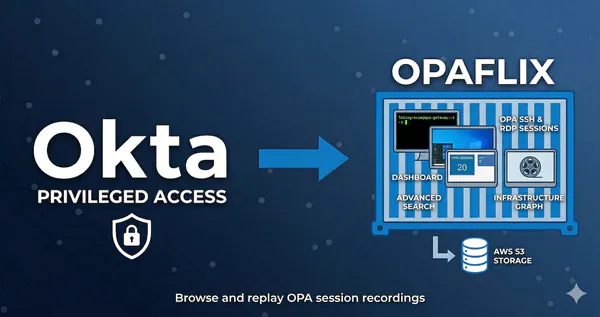
Today I’m releasing Opaflix: an open-source web application that lets you browse and replay converted OPA session recordings stored in AWS S3, protected by Okta OIDC authentication. Like Netflix 🍿 but for your PAM recordings playback.
Opaflix is an open-source community project, and it is not officially supported by Okta. Always test in a non-production environment first.
GitHub Repository #
Sample Video #
Why Opaflix? #
Reviewing session recordings is a critical workflow for security teams, auditors, and PAM administrators. Whether you’re investigating a security incident, validating compliance, or simply verifying that a change was performed correctly, you need a fast and intuitive way to find the right session and play it back.
The inspiration for Opaflix came from opa-utils, a similar project by my former colleague Daniel Harris. Since that project is no longer maintained, I decided to build a new one from scratch with a more modern tech stack.
I’ll also be transparent about something: Opaflix was built with heavy use of Vibe Coding powered by Claude Code. The code has been reviewed and tested, but I’m not a professional developer, so I can’t exclude bugs or security issues. Use with caution.
Key Features #
Here is what Opaflix offers out of the box:
Dashboard and Sessions List #
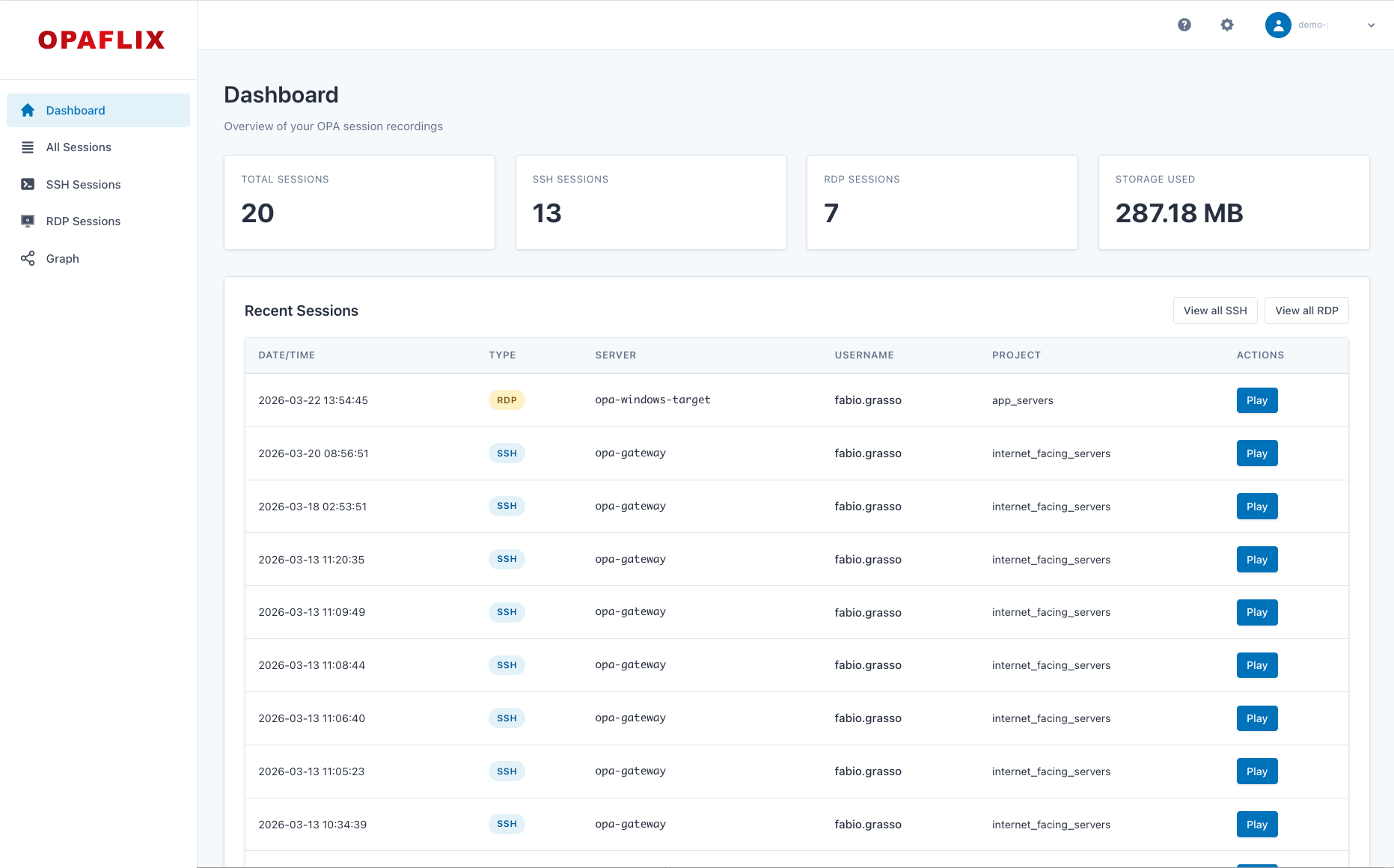
The dashboard provides an overview of session activity, including total sessions, sessions by team, and sessions by project. This gives you quick insights into usage patterns and helps identify anomalies.
| Dashboard with Statistics | Sessions List |
|---|---|
|
|
SSH & RDP Session Playback #
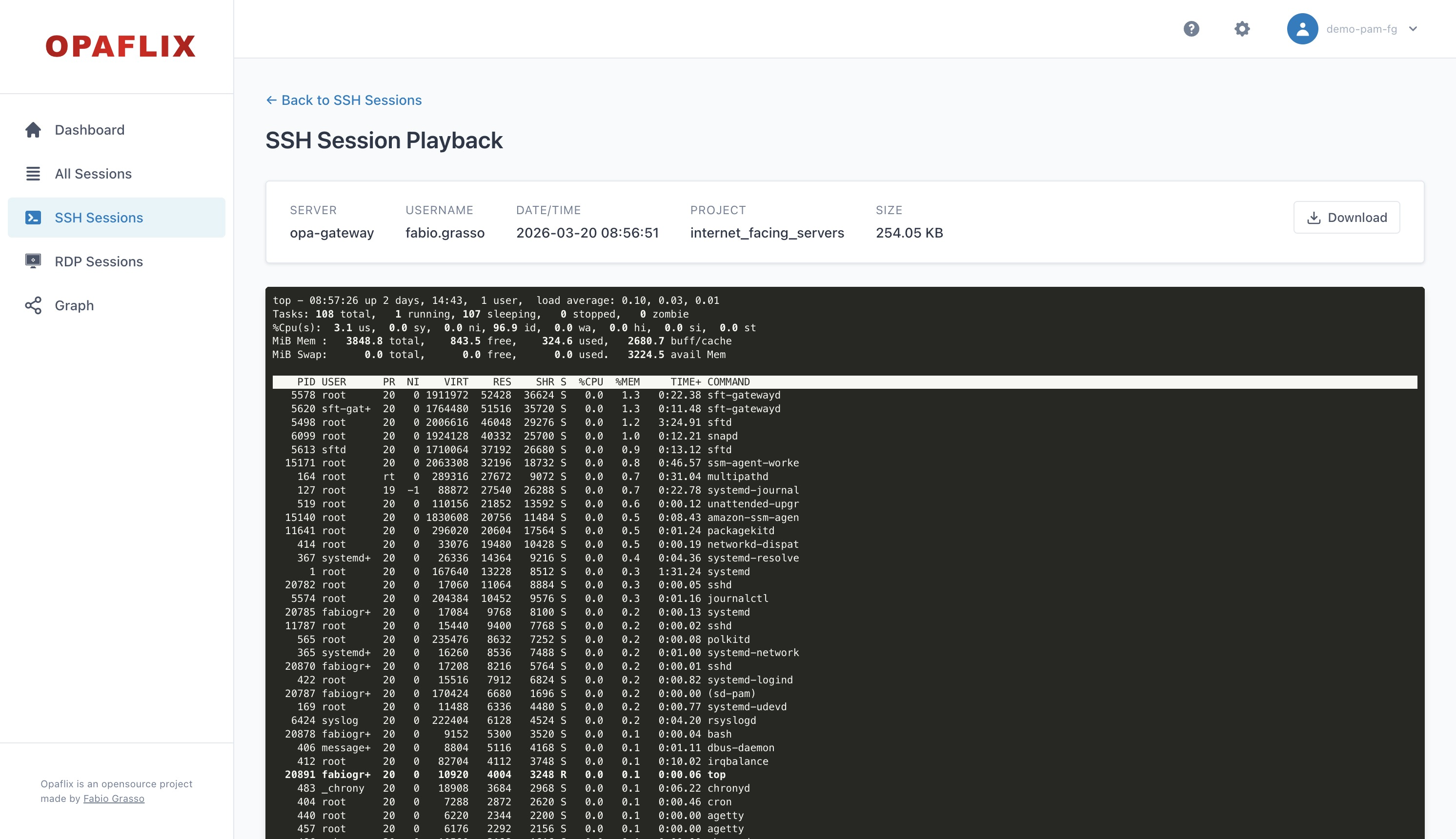
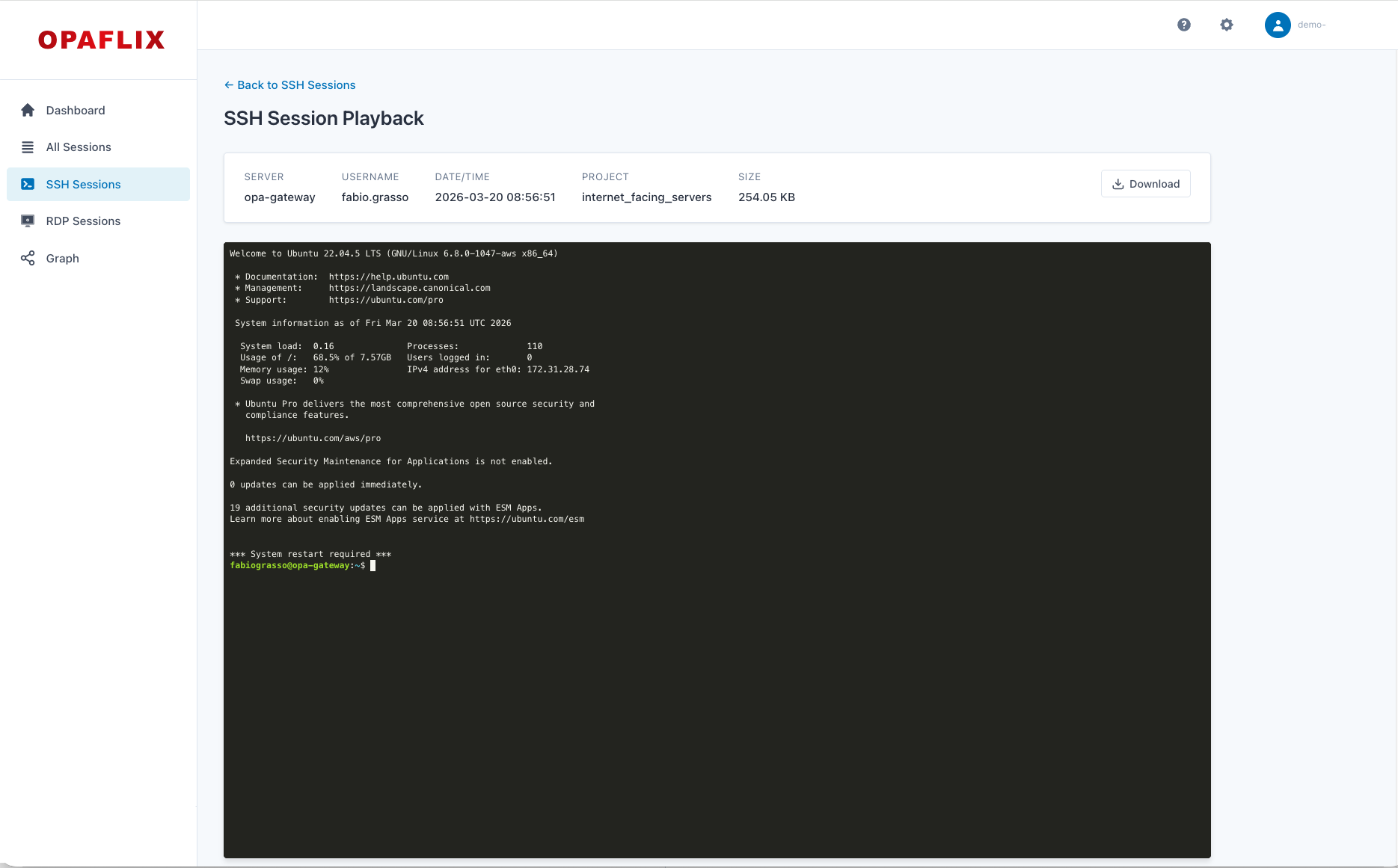
SSH terminal sessions are replayed using the Asciinema player, with support for play/pause, speed control, and seeking. RDP desktop sessions are played back through an HTML5 video player. Both support direct download from S3 for offline access.
| SSH Playback | RDP Playback |
|---|---|
|
|
Single-Tenant and Multi-Tenant Modes #
Opaflix supports two deployment modes.
- In single-tenant mode (default), everything is configured via environment variables with no database required: you can be up and running in under five minutes.
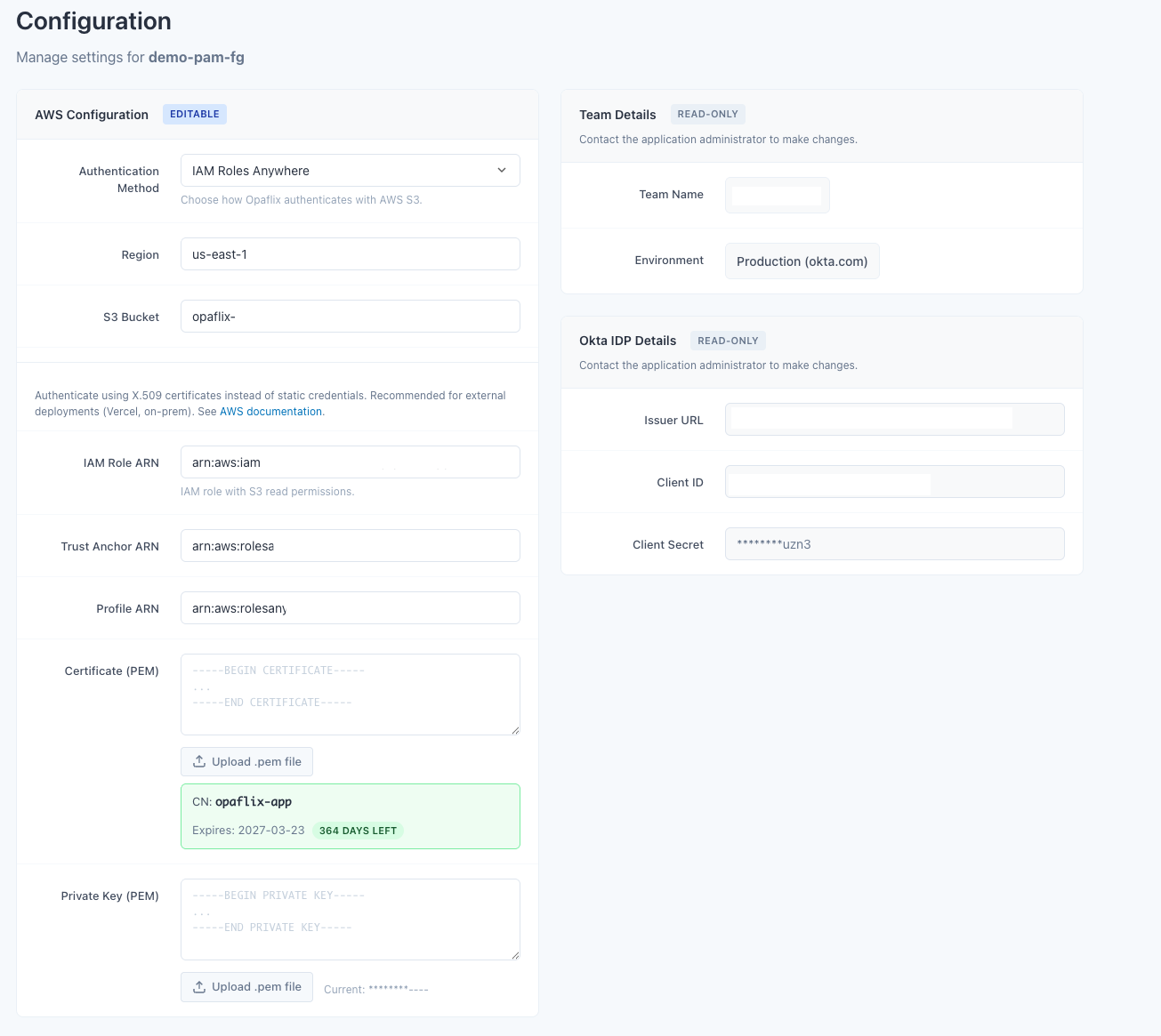
- In multi-tenant mode, a PostgreSQL database backs an isolated configuration per team, with a web UI for managing settings. This makes it suitable for centralized deployments serving multiple OPA teams.
A configuration UI help managing settings in multi-tenant mode.
Advanced Search and Filtering: #
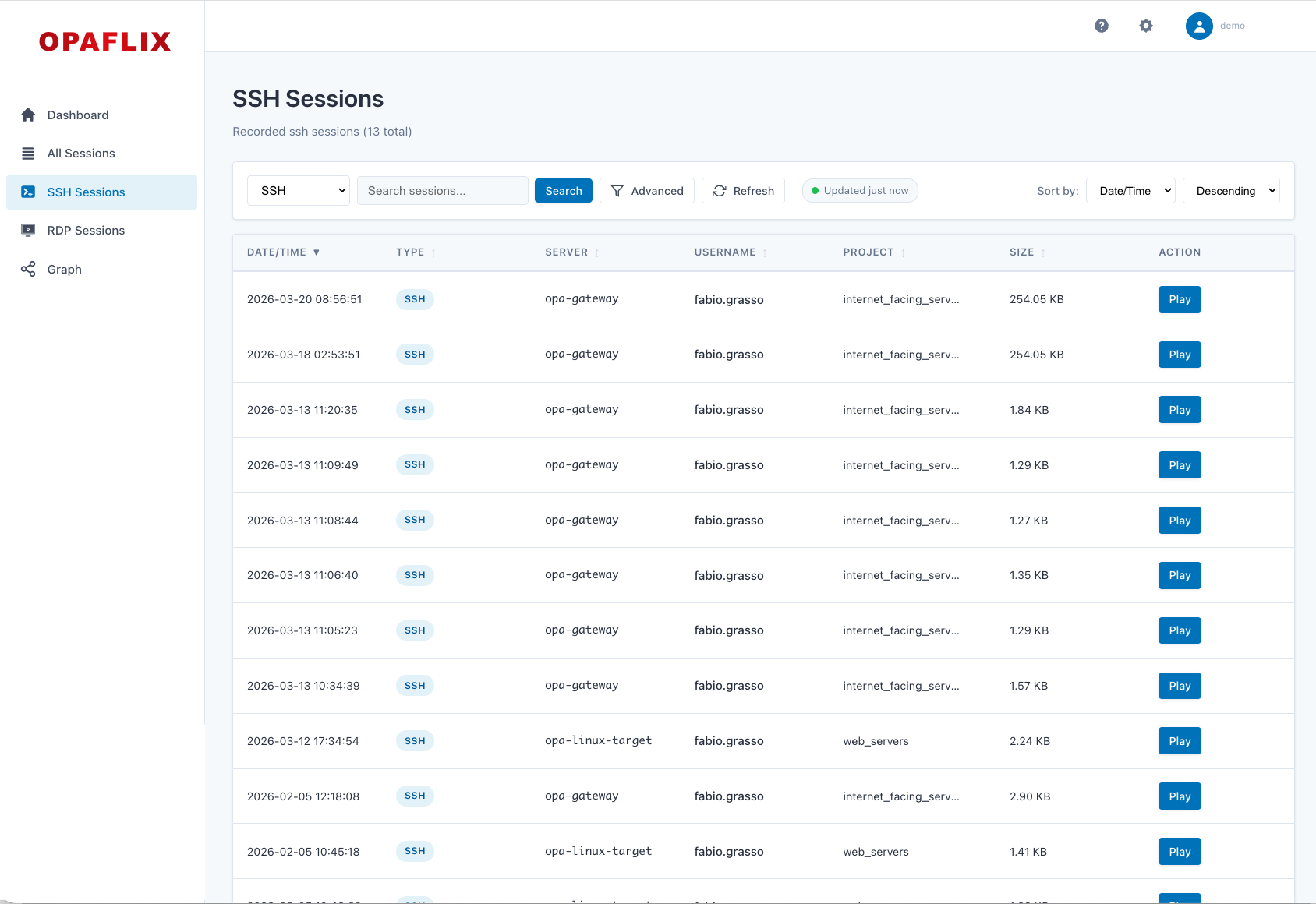
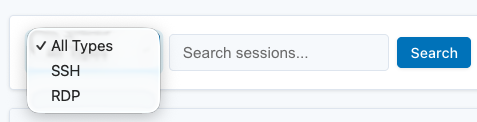
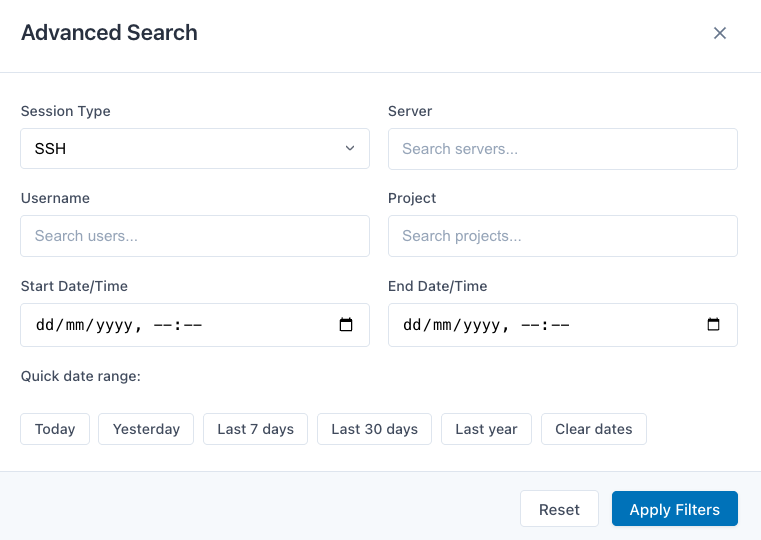
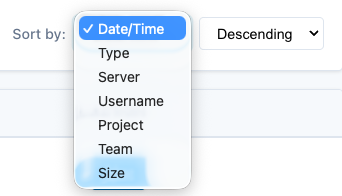
Sessions can be searched and filtered by server, username, project, team, and date range. Filter dropdowns are populated with real-time data from the OPA API. Sortable and resizable columns make it easy to navigate large session archives.
| Simple Search | Advanced Search | Sorting |
|---|---|---|
|
|
|
Infrastructure Graph #
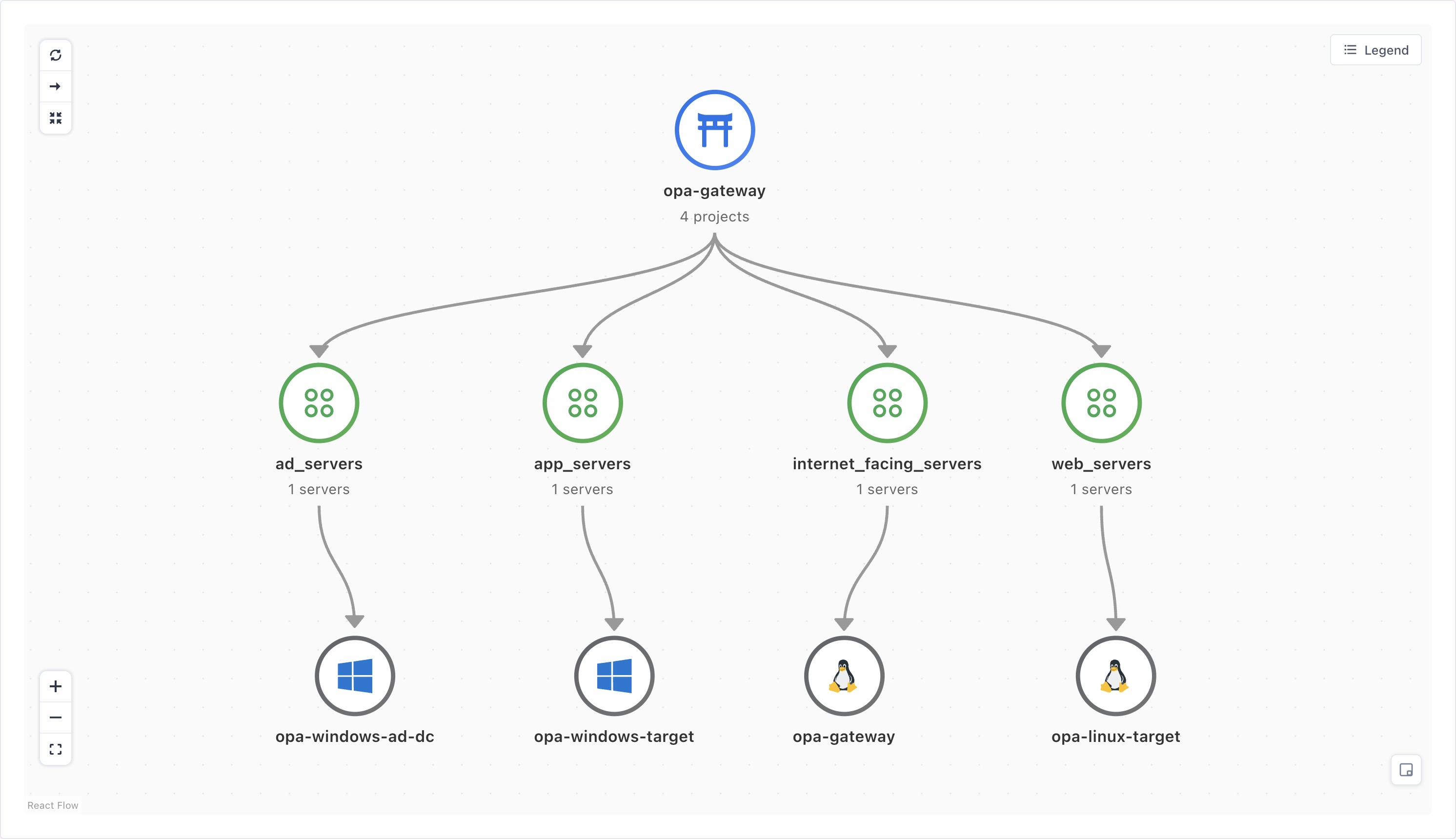
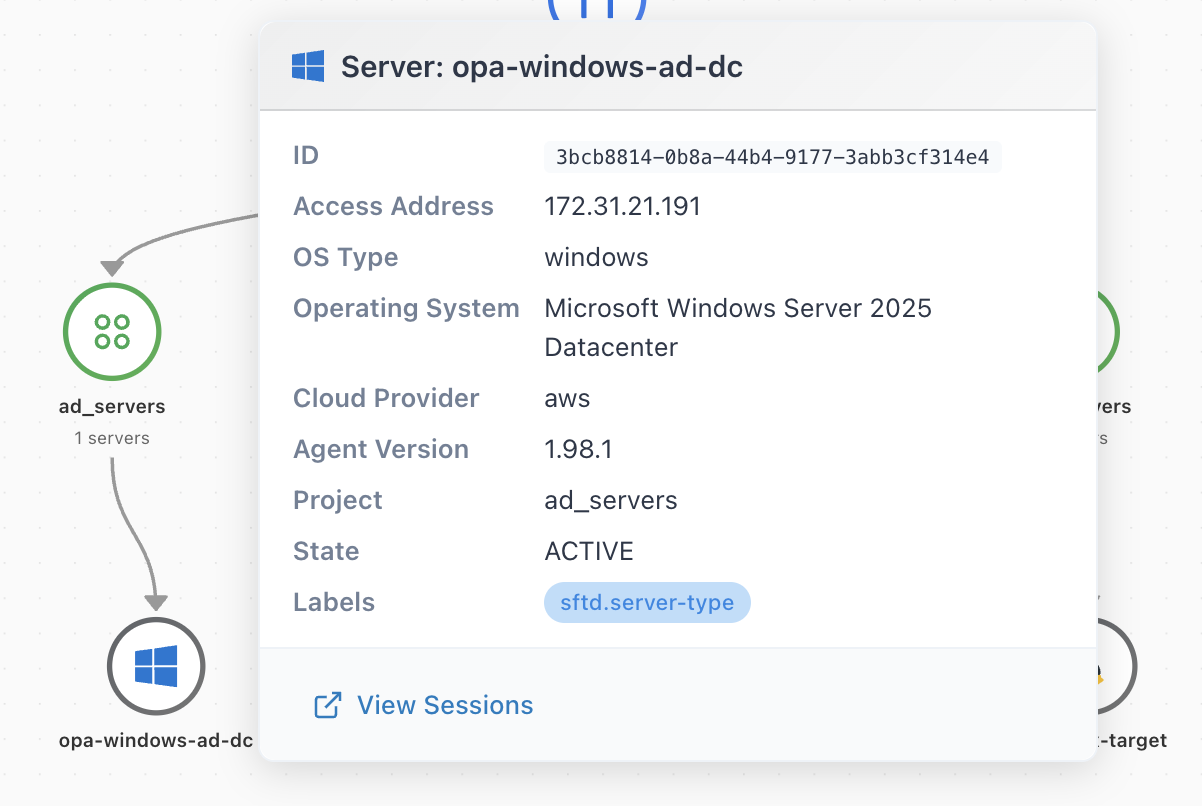
A visual topology view shows the relationships between Gateways, Projects, and Servers, populated with live data from the OPA API. This helps you understand your PAM infrastructure at a glance and quickly navigate to relevant sessions.
| Graph Page | Graph Details |
|---|---|
|
|
Okta OIDC Authentication #
All routes are protected by Okta OIDC. Session cookies are httpOnly, secure, and sameSite. Rate limiting, input validation, and security headers via Helmet.js are included by default.
While basic security measures are implemented, Opaflix is a v1 release and has not undergone a formal security audit. Use with caution, especially in production environments. I warmly suggest deploying behind a WAF and/or VPN, and not exposing it directly to the internet without proper protections in place.
IAM Roles Anywhere Support #
For deployments outside AWS (e.g., Vercel, on-premises), Opaflix supports certificate-based authentication via IAM Roles Anywhere, so you don’t need to rely on static access keys. Static Access Keys are supported as well for simplicity, but using IAM Roles Anywhere is the recommended approach for AWS security best practice.
Detailed instructions for setting up IAM Roles Anywhere and configuring Opaflix to use it are available in docs/AWS.md for general configuration and scripts/aws/README.md for AWS CLI and CloudFormation commands.
How it works #
High-Level Data Flow #
The following is an high-level overview of the Opaflix data flow:
---
config:
  layout: dagre
---
flowchart LR
 subgraph User["1️⃣   Privileged Access"]
        Admin["👤   Administrator"]
  end
   subgraph Gateway["2️⃣   OPA Gateway"]
        Broker["SFT Broker"]
        Session[("Session Recording
/var/log/sft/sessions/*.asa")]
  end
    subgraph Target["3️⃣   Target"]
      Server["🖥️   Server"]
  end
 subgraph SyncService["4️⃣   opaflix-sync"]
        Convert["Session Conversion
.asa → .cast / .mkv"]
  end

 subgraph Storage["5️⃣   AWS S3"]
        S3[("Converted Sessions
.cast / .mkv")]
  end
 subgraph Playback["6️⃣   Opaflix"]
        Web["Web Application"]
        Browser["🌐   Browser"]
  end


    Broker --> Session & Server
    Session --> Convert
    Convert -- Upload --> S3
    S3 --> Web
    Web --> Browser
    Admin -.-> Server
    Admin --> Broker

    style Admin fill:#ffffff
    style Convert fill:#ffffff
    style Broker fill:#ffffff
    style Session fill:#ffffff
    style S3 fill:#ffffff
    style Web fill:#ffffff
    style Browser fill:#ffffff
    style Server fill:#ffffff
    style User fill:#BBDEFB
    style Gateway fill:#C8E6C9
    style Storage fill:#FFF9C4
    style Playback fill:#FFCDD2
    style SyncService fill:#E1BEE7
| Step | Actor | Description |
|---|---|---|
| 1 | Administrator | Connects to target server via SSH or RDP using OPA Gateway as bastion host |
| 2 | OPA Gateway | Proxies the connection to the target server and records the session in proprietary .asa format |
| 3 | Target Server | The actual server being accessed (recorded by the gateway) |
| 4 | opaflix-sync | Converts .asa → .cast (SSH) or .mkv (RDP), uploads to S3 |
| 5 | AWS S3 | Stores converted session recordings |
| 6 | Opaflix | Web interface for browsing and playing back sessions |
The opaflix-sync script may be installed on the same server as the OPA Gateway or on a separate server with access to the .asa files. See Session Conversion for details.
Application Architecture #
The application is built with Node.js, Express, and Handlebars for the backend. Session recordings are served directly from S3 via presigned URLs: no server bandwidth is consumed for playback. Presigned URLs are short-lived (1 hour by default) for security, ensuring recordings cannot be accessed via stale links.
The following diagram illustrates the architecture of the Opaflix application, including its interactions with Okta for authentication, AWS S3 for storage, and the OPA API for real-time data:
---
config:
  layout: dagre
---
flowchart LR
 subgraph Client["Client"]
        Browser["🌐 Browser"]
  end
 subgraph Opaflix["Opaflix"]
        App["Express.js App"]
        Auth["Okta OIDC"]
  end
 subgraph AWS["AWS"]
        S3[("AWS S3")]
  end
  subgraph OktaCloud["Okta Cloud"]
        OPA["OPA API"]
        Okta["Okta IdP"]
  end
  subgraph Database["Database"]
        PG[("PostgreSQL")]
  end
    Browser --> App
    App --> Auth & S3 & OPA
    App -.-> PG
    Auth --> Okta
Quick Start #
Get Opaflix running in single-tenant mode in a few steps:
-
Create an Okta Web App (OIDC) and configure the redirect URIs
-
Create an AWS S3 bucket and upload converted session recordings
-
Clone the Opaflix repository and set up the environment variables
# Clone the repository git clone https://github.com/fabiograsso/okta-opaflix.git cd okta-opaflix # Create and edit the environment file cp .env.example .env -
Fill in the required values in
.env. The minimum required configuration in.envfor single-tenant mode:# Application BASE_URI=http://localhost:3000 SESSION_SECRET=your-secure-secret-minimum-32-characters-long # Okta Authentication OKTA_ISSUER=https://your-tenant.okta.com OKTA_CLIENT_ID=your-client-id OKTA_CLIENT_SECRET=your-client-secret # AWS S3 AWS_REGION=us-east-1 AWS_S3_BUCKET=your-bucket # Option 1: Static Access Keys AWS_ACCESS_KEY_ID=your-access-key AWS_SECRET_ACCESS_KEY=your-secret-key # Option 2: IAM Roles Anywhere # AWS_ROLES_ANYWHERE_TRUST_ANCHOR_ARN=arn:aws:rolesanywhere:us-east-1:123456789012:trust-anchor/abc123 # AWS_ROLES_ANYWHERE_PROFILE_ARN=arn:aws:rolesanywhere:us-east-1:123456789012:profile/def456 # AWS_ROLES_ANYWHERE_ROLE_ARN=arn:aws:iam::123456789012:role/OpaflixS3Access # AWS_ROLES_ANYWHERE_CERTIFICATE="-----BEGIN CERTIFICATE-----\n...\n-----END CERTIFICATE-----" # AWS_ROLES_ANYWHERE_PRIVATE_KEY="-----BEGIN PRIVATE KEY-----\n...\n-----END PRIVATE KEY-----" -
Then start the application:
# Option 1: Local Node.js
npm install && npm start

# Option 2: Docker Compose
make start
Open
http://localhost:3000and authenticate with Okta.
In the GitHub Repository you can find detailed documentation on how to set up multi-tenant mode, configure IAM Roles Anywhere, and automate session conversion and upload to S3.
Prerequisites and Setup #
Before deploying Opaflix, you need:
| Component | Required | Notes |
|---|---|---|
| Node.js 18+ | Yes | Or Docker |
| Okta Web App (OIDC) | Yes | For authentication |
| AWS S3 Bucket | Yes | Stores converted session recordings |
| OPA API Credentials | No | Optional, used to populate filter dropdowns and graph |
| PostgreSQL | Only for multi-tenant | Neon serverless recommended |
Okta OIDC Setup #
- Create a new Web Application in your Okta Admin Console
- Set the Sign-in redirect URI to
http://localhost:3000/authorization-code/callback(or your custom domain) - Set the Sign-out redirect URI to
http://localhost:3000/login - Copy the Client ID and Client Secret to your
.envfile
OPA Gateway Configuration #
For Opaflix to correctly parse session metadata, recordings must follow a specific filename format. Edit /etc/sft/sft-gatewayd.yaml on your OPA Gateway:
LogFileNameFormats:
  SSHRecording: "{{.Protocol}}~{{.StartTime}}~{{.TeamName}}~{{.ProjectName}}~{{.ServerName}}~{{.Username}}~"
  RDPRecording: "{{.Protocol}}~{{.StartTime}}~{{.TeamName}}~{{.ProjectName}}~{{.ServerName}}~{{.Username}}~"
Restart the gateway with sudo systemctl restart sft-gatewayd.
This produces filenames like:
ssh~2024-01-15T10:30:00Z~acme-team~production~web-server-01~admin~.asaSession Conversion #
OPA session recordings (.asa files) must be converted before uploading to S3:
# SSH: .asa → .cast (Asciinema format)
sft session-logs export --insecure --format asciinema /path/source.asa --output /path/output.cast

# RDP: .asa → .mkv
sft session-logs export --insecure --format mkv --output /path/ /path/source.asa
Two conversion utilities are provided in scripts/convert-sessions/:
| Script | Type | Use Case |
|---|---|---|
convert-sessions.sh |
Bash | Manual or cron-based batch conversion |
opaflix-sync.py |
Python | Automated service with file system monitoring |
Bash Script (convert-sessions.sh): A straightforward batch converter. Point it at a directory of .asa files, and it will convert them to the appropriate format (.cast for SSH, .mkv for RDP). Ideal for one-off conversions and tests. You have then to manually upload the converted files to S3 (e.g. using aws s3 cp or manually uploading the files in the AWS Management Console).
Python Service (opaflix-sync.py): A more sophisticated option that runs as a background service. It uses file system monitoring (via watchdog) to detect new .asa files as they arrive, converts them automatically, and uploads them to the S3 bucket. It includes duplicate detection, configurable cleanup of old source files, and a systemd service file for production deployments. This is the recommended approach for production environments where you want near real-time availability of session recordings in Opaflix.
You can read more details in scripts/convert-sessions/README.md on GitHub.
AWS S3 Bucket Setup #
Opaflix requires an S3 bucket to store converted session recordings. The bucket needs appropriate IAM policies to allow Opaflix to generate presigned URLs for playback.
You can find the full S3 setup documentation on the GitHub repository:
- docs/AWS.md for general AWS configuration
- scripts/aws/README.md for AWS CLI and CloudFormation commands
A CloudFormation template is provided to automate the entire AWS setup, including:
- S3 bucket with proper CORS configuration for browser-based playback
- IAM policy with least-privilege permissions for Opaflix
- Optional IAM Roles Anywhere trust anchor and profile (for deployments outside AWS)
Known Limitations #
Opaflix is a v1 release. There are a few intentional constraints worth knowing:
- No permission management. All authenticated users can access all recordings. The primary audience is PAM Admins and Auditors, adding granular permission management is on the long-term roadmap, but keeping things simple was the priority for this release.
- S3 only. Other storage backends may be evaluated in the future based on feedback.
- Vibe Coded. As mentioned above, this project was built with heavy AI assistance. It’s been tested, but if you find a bug, please open an issue.
What’s Next #
The project is live and open for contributions. The immediate roadmap includes:
- Improve the initial tenant creation process in multi-tenant mode with a dedicated UI
- Evaluate granular permission management based on community feedback
- Evaluate additional storage backends beyond S3
Documentation Links #
The complete documentation is available in the GitHub Repository, here are some quick links to get you started:
- README.md - Main Documentation
- docs/AWS.md - General AWS Configuration
- scripts/aws/README.md - AWS CLI and CloudFormation Commands
- scripts/convert-sessions/README.md - Session Conversion Scripts
If you have suggestions for features, improvements, or if you find any issues, please don’t hesitate to comment here or open an issue on GitHub.
Conclusion #
Opaflix fills a practical gap for anyone running Okta Privileged Access at scale. If your security team needs to review session recordings regularly, having a searchable, authenticated, browser-based player dramatically reduces friction, whether you’re responding to an incident or running a quarterly compliance review.
The project is available now at github.com/fabiograsso/okta-opaflix under the Apache 2.0 license.
Questions or feedback? If you try it, feel free to open issues, submit PRs, or leave a comment below. Feedback from the field is always welcome.
Special Thanks #
- Pascale Kik - For her invaluable feedback and testing efforts during the early stages of development. Her insights helped shape the user experience and identify critical issues.
- Okta Community - For their support and engagement, which inspired the creation of Opaflix as a tool to benefit PAM administrators and auditors.