
Introduction #
Your organization likely runs critical business applications backed by custom databases—systems that have been reliable workhorses for years but don’t speak the language of modern identity protocols. While integrating cloud applications with Okta using SAML, OIDC (OpenID Connect), and SCIM 2.0 is straightforward, bringing these legacy database-driven applications into your unified identity fabric has historically required complex custom scripting or middleware solutions.
Okta recently released the On-premises Connector for Generic Databases, a powerful Early Access feature that changes the game. This connector enables direct provisioning and lifecycle management to on-premises databases via JDBC, bringing automated joiner/mover/leaver (JML) workflows and entitlement management to applications that were previously difficult to integrate. No more custom scripts, no more manual account management—just standards-based automation using the SCIM protocol.
This guide provides a complete deep dive into deploying and configuring the Generic Database Connector. You’ll build a fully functional test environment using Docker Compose with MariaDB (MySQL-compatible), configure every aspect of the integration—from user provisioning to entitlement management—and test real-world scenarios including user creation, attribute updates, entitlement assignments, and deactivation workflows.
Why Docker for This Lab?
Docker Compose provides the fastest path to a working environment, letting you spin up the entire stack—Okta Provisioning Agent, SCIM Server, MariaDB database, and a web-based management interface—in minutes. While Okta doesn’t officially support Docker for production deployments, it’s ideal for demonstrations, proof-of-concepts, and learning the integration workflow.
Importantly, every configuration step in this guide applies equally to manual installations on production systems. Whether you’re testing in Docker or deploying on dedicated Linux servers, the Okta configuration, stored procedures, and integration patterns remain identical. Think of the Docker environment as an accelerator for understanding—once you’ve mastered the concepts here, translating them to a production deployment is straightforward.
Quick Instructions #
- Clone the repository: https://github.com/fabiograsso/okta-lab-onprem-jdbc
- Download the required RPM files from Okta Help Center:
- Okta Provisioning Agent:
OktaProvisioningAgent-*.rpm→ copy to./docker/okta-opp/packages/ - Okta SCIM Server:
OktaOnPremScimServer-*.rpm→ copy to./docker/okta-scim/packages/
- Okta Provisioning Agent:
- Configure the environment:
cp .env-sample .env(edit if needed) - Build and start:
make build && make start-logs - Configure the OPP Agent:
make configure(once you see “Waiting for configuration files” message) - Retrieve SCIM credentials from
./data/okta-scim/conf/config-*.properties - Configure the Generic Database Connector application in Okta Admin Console
Prerequisites #
System Requirements #
- Docker and Docker Compose (v2+) are installed
- If you are using Ubuntu 24.04 Linux server:
apt-get install -y docker docker-compose - You can also use Docker Desktop
- If you are using Ubuntu 24.04 Linux server:
- Okta Organization with administrative access
- Git (to clone the repository)
Okta Early Access Feature #
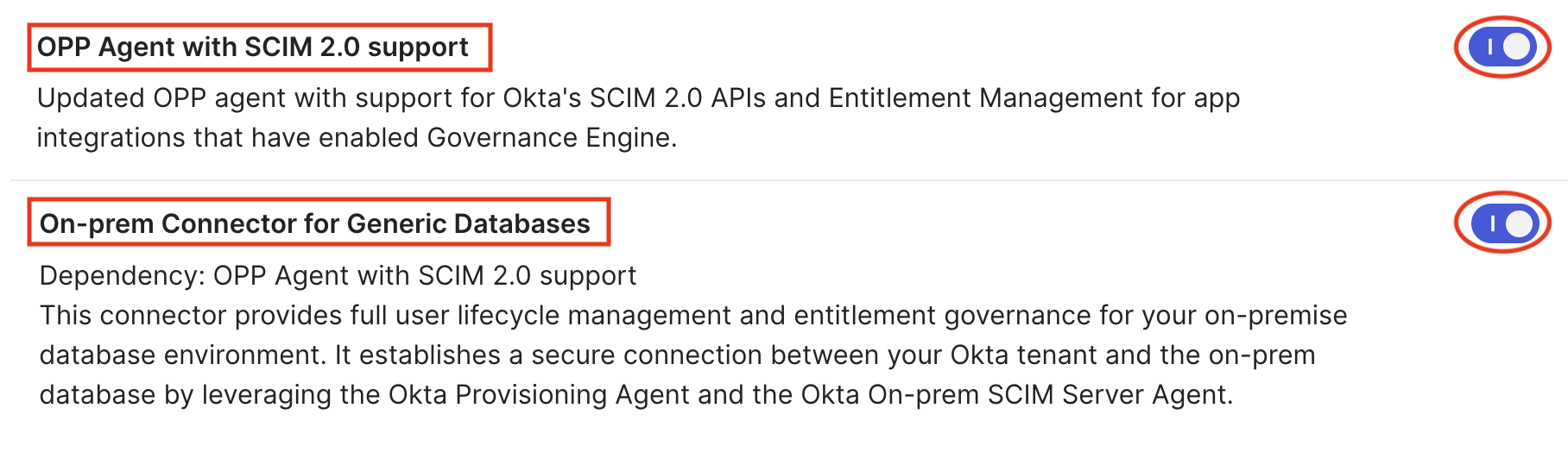
Since the Okta Generic Database Connector is currently an Early Access feature, you need to enable it in the Okta Admin Panel:
- Navigate to Settings → Features
- Enable “OPP Agent with SCIM 2.0 support”
- Enable “On-prem Connector for Generic Databases”
Required Files from Okta #
You’ll need to download installer packages from the Okta Admin Console.
For OPP Agent - Place in ./docker/okta-opp/packages/:
| File | Required | Description | Download |
|---|---|---|---|
OktaProvisioningAgent-<version>.x86_64.rpm |
Yes | OPP Agent installer | From the Okta Admin Console → Settings → Downloads → Okta Provisioning Agent x64 RPM |
*.pem or *.crt (certificates) |
No | Custom VPN certificates | Copy your VPN provider root CA |
For SCIM Server - Place in ./docker/okta-scim/packages/:
| File | Required | Description | Download |
|---|---|---|---|
OktaOnPremScimServer-<version>.rpm |
Yes | SCIM Server installer | From the Okta Admin Console → Settings → Downloads → Okta On-prem SCIM Server |
*.jar (JDBC drivers) |
No | Additional database drivers | MySQL Connector/J is auto-downloaded. For other databases: PostgreSQL, Oracle, SQL Server |
*.pem or *.crt (certificates) |
No | Custom VPN certificates | Copy your VPN provider root CA |
Understanding the Architecture #
Before diving into the setup, it’s essential to understand how the components work together.
What is the Okta Generic Database Connector (JDBC)? #
The Okta Generic Database Connector allows Okta to connect to on-premises databases using JDBC drivers. It enables comprehensive user lifecycle management and entitlement operations by executing SQL queries or stored procedures against the database. This is particularly valuable for organizations with legacy applications or custom databases that don’t support modern provisioning protocols but can be accessed via JDBC.
What is the Okta On-Premises Provisioning Agent? #
The Okta On-Premises Provisioning (OPP) Agent acts as a secure bridge between Okta’s cloud identity platform and your on-premises applications. Key capabilities include:
- Automated User Provisioning: Create, update, and deactivate user accounts in on-premises databases
- SCIM Protocol Support: Industry-standard protocol for user identity management
- Secure Communication: Outbound-only HTTPS connections from your network to Okta (no inbound firewall rules required)
- Real-time Synchronization: Push user changes from Okta to on-premises systems instantly
What is the Okta On-Prem SCIM Server? #
The Okta On-prem SCIM Server is a Java application that translates SCIM API calls from the OPP Agent into database operations using JDBC. It serves as the intermediary layer that allows Okta to manage user accounts in your on-premises database through the SCIM protocol.
How They Work Together #
The complete provisioning flow involves four key stages:
-
Okta Cloud → OPP Agent: The Provisioning Agent maintains a secure, outbound HTTPS connection from your network to Okta using long polling. Since the connection originates from within your network perimeter, no inbound firewall rules are required.
-
OPP Agent → SCIM Server: When lifecycle management or provisioning requests arrive from Okta, the Agent relays them to the SCIM Server for processing.
-
SCIM Server → Database: The SCIM Server interprets incoming SCIM requests and executes the corresponding database operations—creating users, modifying attributes, deactivating accounts, or managing entitlements—directly against your on-premises database.
-
Response Flow: Data and operation results return through the same path in reverse: from the database to the SCIM Server, then to the Provisioning Agent, which securely transmits the results back to Okta.
---
config:
 layout: dagre
---
flowchart TB
 subgraph subGraph0["**Okta Cloud**"]
 A["Okta Org"]
 end
 subgraph subGraph1["**Docker Environment**"]
 B["OPP Agent"]
 C["SCIM Server"]
 D["MariaDB Database"]
 E["DBGate UI"]
 end
 B -- Outbound HTTPS --> A
 B -- SCIM Protocol --> C
 C -- JDBC Connection --> D
 E -- Management --> D

 style B fill:#FFE0B2
 style C fill:#FFE0B2
 style D fill:#FFCDD2
 style E fill:#FFF9C4
 style subGraph0 stroke:#757575,fill:#C8E6C9
 style subGraph1 fill:#BBDEFB,stroke:#2962FF
Lab Components #
This Docker Compose environment includes four separate containers:
- Okta Provisioning Agent (okta-opp): CentOS based container running the OPP Agent
- Okta On-Prem SCIM Server (okta-scim): CentOS 9-based container running the SCIM Server
- MariaDB (db): Database server pre-populated with test data and stored procedures
- DBGate: Web-based database management interface for easy data inspection
Multi-Database Support #
A powerful feature of this solution is that a single OPP Agent and SCIM Server deployment can manage up to 8 databases simultaneously. This enables:
- Management of users across multiple applications
- Support for different database types (MySQL, PostgreSQL, Oracle, SQL Server)
- Separation of production and staging environments
- Organizational unit isolation
Each database requires a separate Generic Database Connector application instance in Okta, but all share the same on-premises infrastructure. This means you only need one OPP Agent and one SCIM Server installation to provision to multiple databases—just ensure all required JDBC drivers are available in the SCIM Server before building the container.
Docker Compose Setup #
Docker provides the fastest path to a working environment. This section covers the complete setup process using Docker Compose.
Okta does not officially support Docker for running the OPP Agent and SCIM Server in production environments. While it’s a fantastic way to quickly set up a full environment for demos and POCs, production deployments should follow the official installation guide on supported operating systems.
However, Docker is the optimal solution for:
- Demonstrations and presentations
- Proof of concepts (POCs)
- Development and testing
- Learning the integration workflow
Initial Setup #
-
Clone the Repository
git clone https://github.com/fabiograsso/okta-lab-onprem-jdbc cd okta-lab-onprem-jdbc -
Prepare Required Files
Download the RPM packages from the Okta Help Center and organize them:
# Copy OPP Agent RPM cp /path/to/OktaProvisioningAgent-*.rpm ./docker/okta-opp/packages/ # Copy SCIM Server RPM cp /path/to/OktaOnPremScimServer-*.rpm ./docker/okta-scim/packages/ -
Configure Environment Variables
The
.envfile contains all configuration parameters:cp .env-sample .envYou can customize the database settings if needed (default values work for testing):
# Database Configuration
MARIADB_PORT=3306
MARIADB_DATABASE=oktademo
MARIADB_USER=oktademo
MARIADB_PASSWORD=oktademo
MARIADB_ROOT_PASSWORD=oktademo

# SCIM Server Logging (for troubleshooting)
LOG_LEVEL_ROOT=INFO
LOG_LEVEL_OKTA_SCIM=INFO
LOG_LEVEL_SPRING_JDBC=INFO
Before proceeding, verify:
- OPP Agent RPM exists in
./docker/okta-opp/packages/ - SCIM Server RPM exists in
./docker/okta-scim/packages/ .envfile is configured (default values are fine for testing)
Build and Start Services #
The project includes a Makefile with convenient commands for managing the Docker environment:
# Build Docker images (includes prerequisite checks)
make build

# Start all services (detached mode with log following)
make start-logs

# Alternative: Start in detached mode without logs
# make start
The make start command will:
- Run prerequisite checks to verify RPM files are present
- Start all four containers (db, dbgate, okta-scim, okta-opp)
- Initialize the database with schema and test data
- Generate SCIM Server certificates and configuration
You’ll see output similar to this:
[+] Running 4/4
 ✔ Container lab-db-1          Started
 ✔ Container lab-dbgate-1      Started
 ✔ Container lab-okta-scim-1   Started
 ✔ Container lab-okta-opp-1    Started
Configure the OPP Agent #
After the containers start, the OPP Agent will wait for configuration. You’ll see this message in the logs:
⏳ Waiting for configuration files. Please configure the Agent...Now run the interactive configuration script:
make configureFollow the prompts:
- Okta Subdomain: Enter your Okta org URL (e.g.,
https://myorg.okta.com) - Proxy Server: Press Enter to skip (unless you’re behind a proxy)
- LDAP Server: Not applicable for database connector - press Enter to skip
- SCIM Server: Not applicable - configuration is automatic via Docker networking
The script will display an activation URL and code:
Please visit the URL: https://myorg.okta.com/activate
and enter the following code: MSJPKGRP
before Fri Mar 02 15:30:00 UTC 2026 to authenticate and continue agent registration.
Open the provided URL in your browser, enter the activation code, and click “Allow” to complete the registration.
You’ll see a success message:
[INFO] - Register Mode successfully finished

Configuration successful.

Service can now be started by typing
systemctl start OktaProvisioningAgent.service
as root.systemctl command since the agent is already running in the container. The message indicates that the configuration files have been generated successfully.
Retrieve SCIM Server Credentials #
The SCIM Server automatically generates a bearer token and self-signed certificate on first startup. These credentials are needed to configure the Okta application.
Option 1 - From Host Filesystem:
# Get the bearer token (look for scim.security.bearer.token property)
cat ./data/okta-scim/conf/config-*.properties | grep bearer.token

# Output example:
# scim.security.bearer.token=da655feabd8ec0c3f89c1fb6e9f0ad39

# Get the public certificate
cat ./data/okta-scim/certs/OktaOnPremScimServer-*.crt
Option 2 - From Container:
# Display all credentials
docker compose exec okta-scim /opt/OktaOnPremScimServer/bin/Get-OktaOnPremScimServer-Credentials.sh

# Get just the certificate
docker compose exec okta-scim bash -c 'cat /opt/OktaOnPremScimServer/certs/OktaOnPremScimServer-*.crt'
Save these credentials - you’ll need them when configuring the Okta application:
- SCIM Hostname:
okta-scim(container name for internal Docker networking) - Bearer Token: The value from
scim.security.bearer.token(will be prefixed withBearerin Okta) - Certificate: The
.crtfile contents
Verify the Setup #
Check that all containers are running properly:
# Check container status
docker compose ps

# Expected output:
# NAME               STATUS        PORTS
# lab-db-1           Up (healthy)  33060/tcp
# lab-dbgate-1       Up            0.0.0.0:8090->3000/tcp
# lab-okta-scim-1    Up (healthy)  0.0.0.0:1443->1443/tcp
# lab-okta-opp-1     Up
You can also access the DBGate web interface to inspect the database:
- Open http://localhost:8090 in your browser
- Username:
oktademo - Password:
oktademo
Other Useful Commands #
The Makefile provides additional commands for managing the environment:
| Command | Description |
|---|---|
make help |
Display all available commands |
make stop |
Stop and remove all containers |
make restart |
Restart all services |
make restart-logs |
Restart and follow logs |
make logs |
Follow container logs (last 500 lines) |
make rebuild |
Force rebuild from scratch (no cache) |
make kill |
Kill containers and remove orphans |
Database Schema and Test Data #
The MariaDB database is automatically initialized with a comprehensive schema designed for realistic user provisioning scenarios.
Database Tables #
The database includes three core tables:
USERS Table:
- Identity:
USER_ID(PRIMARY KEY),USERNAME(UNIQUE),EMAIL - Personal:
FIRSTNAME,LASTNAME,MIDDLENAME,DISPLAYNAME,NICKNAME - Contact:
MOBILEPHONE,STREETADDRESS,CITY,STATE,ZIPCODE,COUNTRYCODE,TIMEZONE - Work:
TITLE,ORGANIZATION,DEPARTMENT,EMPLOYEENUMBER,MANAGER,MANAGERID - Dates:
HIREDATE,TERMINATIONDATE - Security:
PASSWORD_HASH,IS_ACTIVE(BOOLEAN, default TRUE)
ENTITLEMENTS Table
ENT_ID(INT PRIMARY KEY, values 1-10)ENT_NAME(VARCHAR 100, UNIQUE)ENT_DESCRIPTION(VARCHAR 255)
USERENTITLEMENTS Table (Junction Table):
USERENTITLEMENT_ID(INT PRIMARY KEY, AUTO_INCREMENT)USER_ID(FOREIGN KEY to USERS)ENT_ID(FOREIGN KEY to ENTITLEMENTS)ASSIGNEDDATE(DATETIME, auto-populated)- Unique constraint on (USER_ID, ENT_ID) combination
erDiagram
    USERS ||--o{ USERENTITLEMENTS : "has"
    ENTITLEMENTS ||--o{ USERENTITLEMENTS : "assigned_to"

    USERS {
        VARCHAR(100) *USER_ID PK "User identifier (email format) - REQUIRED"
        VARCHAR(100) USERNAME UK "Login username (unique) - REQUIRED"
        VARCHAR(100) EMAIL "Email address - REQUIRED"
        VARCHAR(100) FIRSTNAME "First name - REQUIRED"
        VARCHAR(100) LASTNAME "Last name - REQUIRED"
        VARCHAR(100) OTHERFIELDS "...Other Fields..."
        DATE HIREDATE "Date of hire"
        DATE TERMINATIONDATE "Date of termination"
        VARCHAR(255) PASSWORD_HASH "Password hash"
        BOOLEAN IS_ACTIVE "Account status (default TRUE)"
    }

    ENTITLEMENTS {
        INT ENT_ID PK "Entitlement identifier"
        VARCHAR(100) ENT_NAME UK "Entitlement name (unique)"
        TEXT ENT_DESCRIPTION "Description of entitlement"
    }

    USERENTITLEMENTS {
        INT USERENTITLEMENT_ID PK "Auto-increment ID"
        VARCHAR(100) USER_ID FK "Foreign key to USERS"
        INT ENT_ID FK "Foreign key to ENTITLEMENTS"
        DATETIME ASSIGNEDDATE "When entitlement was assigned"
    }
Test Data #
The database comes pre-populated with 15 Star Wars characters as test users:
| User ID | Name | Organization | Title | Entitlements |
|---|---|---|---|---|
| luke.skywalker@galaxy.local | Luke Skywalker | Jedi | Jedi Knight | VPN Access, GitHub Admin, Confluence Edit |
| leia.organa@galaxy.local | Leia Organa | Resistance | General | VPN Access, AWS Console, Jira Admin |
| han.solo@galaxy.local | Han Solo | Resistance | Smuggler | VPN Access, Database Read |
| obiwan.kenobi@galaxy.local | Obi-Wan Kenobi | Jedi | Jedi Master | VPN Access, GitHub Admin, AWS Console |
| yoda@galaxy.local | Yoda | Jedi | Grand Master | VPN Access, GitHub Admin, AWS Console, Jira Admin |
| … | … | … | … | … |
10 Pre-configured Entitlements:
- VPN Access
- GitHub Admin
- AWS Console
- Jira Admin
- Confluence Edit
- Database Read
- Database Write
- Slack Admin
- Office 365
- Salesforce
You can inspect the test data using DBGate or command-line queries:
# View all users
docker compose exec db mariadb -u oktademo -poktademo oktademo \
  -e "SELECT USER_ID, FIRSTNAME, LASTNAME, TITLE, ORGANIZATION FROM USERS LIMIT 10;"

# View all entitlements
docker compose exec db mariadb -u oktademo -poktademo oktademo \
  -e "SELECT * FROM ENTITLEMENTS;"

# View user-entitlement assignments
docker compose exec db mariadb -u oktademo -poktademo oktademo \
  -e "SELECT * FROM USERENTITLEMENTS LIMIT 10;"
Operational Views #
The database also includes 6 operational views for convenient monitoring and reporting queries:
V_USERENTITLEMENTS- Comprehensive view joining users with their entitlementsV_ACTIVE_USERS- Quick access to active users onlyV_INACTIVE_USERS- Quick access to inactive/deactivated usersV_ENTITLEMENT_USAGE- Statistics on entitlement assignmentsV_USER_HIERARCHY- User reporting structure and management chainsV_INACTIVE_USERENTITLEMENTS- Entitlements assigned to inactive users (for cleanup)
These views provide simplified access to common queries without writing complex joins, making it easier to monitor your identity data.
Stored Procedures #
The database includes stored procedures that provide a clean abstraction layer for SCIM operations:
Import Operations (To Okta):
GET_ACTIVEUSERS()- Retrieve all active users (WHERE IS_ACTIVE = 1)GET_USER_BY_ID(p_user_id)- Get specific user by USER_IDGET_ALL_ENTITLEMENTS()- List all available entitlementsGET_USER_ENTITLEMENT(p_user_id)- Get user’s assigned entitlements
Provisioning Operations (To App):
CREATE_USER(...)- Create new user with 24 parameters (5 mandatory, 19 optional)UPDATE_USER(...)- Update user attributes with 24 parameters (5 mandatory, 19 optional)ACTIVATE_USER(p_user_id)- Set IS_ACTIVE = TRUEDEACTIVATE_USER(p_user_id)- Set IS_ACTIVE = FALSEADD_ENTITLEMENT_TO_USER(p_user_id, p_ent_id)- Assign entitlementREMOVE_ENTITLEMENT_FROM_USER(p_user_id, p_ent_id)- Revoke entitlement
You can test stored procedures directly:
# Test GET_ACTIVEUSERS
docker compose exec db mariadb -u oktademo -poktademo oktademo \
  -e "CALL GET_ACTIVEUSERS();"

# Test GET_USER_ENTITLEMENT
docker compose exec db mariadb -u oktademo -poktademo oktademo \
  -e "CALL GET_USER_ENTITLEMENT('yoda@galaxy.local');"
SQL Queries vs Stored Procedures #
The Generic Database Connector supports two approaches for configuring database operations:
- SQL Statements: Direct SQL queries (e.g.
SELECT,INSERT,UPDATE,DELETE) - Stored Procedures: Pre-compiled database procedures that encapsulate business logic
This guide provides both options for each operation, allowing you to choose the approach that best fits your requirements and database architecture. Stored procedures are pre-configured in sql/stored_proc.sql and are the recommended approach.
Stored Procedures are pre-compiled SQL code blocks stored in the database that can be executed with a single call. They act as reusable functions that encapsulate complex queries and business logic. Key Benefits:
- Security: Parameters are automatically handled, preventing SQL injection attacks
- Performance: Pre-compiled and optimized by the database engine
- Maintainability: Centralized logic makes updates easier without changing Okta configuration
- Abstraction: Hides database complexity from the provisioning layer
- Consistency: Ensures the same logic is applied across all operations
- Portability: Easier to migrate to different databases by just rewriting the stored procedures without changing Okta configuration
Example:
Instead of writing: SELECT * FROM USERS WHERE USER_ID = ?
You call: CALL GET_USER_BY_ID(?)
The procedure internally handles the query, any data transformations, and - eventually - error handling.
The following diagram illustrates how all stored procedures interact with the database tables:
---
config:
  layout: elk
---
flowchart TB
 subgraph s1["Database Tables"]
        USERENTITLEMENTS[("USERENTITLEMENTS
Junction Table")]
        ENTITLEMENTS[("ENTITLEMENTS
ENT_ID, ENT_NAME, ENT_DESCRIPTION")]
        USERS[("USERS")]
  end
 subgraph s2["Read Operations"]
        GET_USER_ENTITLEMENT["GET_USER_ENTITLEMENT
Input: p_user_id"]
        GET_ALL_ENTITLEMENTS["GET_ALL_ENTITLEMENTS
Returns all entitlements"]
        GET_USER_BY_ID["GET_USER_BY_ID
Input: p_user_id"]
        GET_ACTIVEUSERS["GET_ACTIVEUSERS
Returns all active users"]
  end
 subgraph s3["User Lifecycle Operations"]
        DEACTIVATE_USER["DEACTIVATE_USER
Input: p_user_id"]
        ACTIVATE_USER["ACTIVATE_USER
Input: p_user_id"]
        UPDATE_USER["UPDATE_USER
29 Parameters
5 mandatory + 24 optional"]
        CREATE_USER["CREATE_USER
29 Parameters
5 mandatory + 24 optional"]
  end
 subgraph s4["Entitlement Management"]
        REMOVE_ENTITLEMENT["REMOVE_ENTITLEMENT_FROM_USER
Inputs: p_user_id, p_ent_id"]
        ADD_ENTITLEMENT["ADD_ENTITLEMENT_TO_USER
Inputs: p_user_id, p_ent_id"]
  end
    GET_ACTIVEUSERS -- "SELECT WHERE IS_ACTIVE=1" --> USERS
    GET_USER_BY_ID -- "SELECT WHERE USER_ID=?" --> USERS
    GET_ALL_ENTITLEMENTS -- SELECT * --> ENTITLEMENTS
    GET_USER_ENTITLEMENT -- JOIN --> USERENTITLEMENTS & USERS & ENTITLEMENTS
    CREATE_USER -- INSERT --> USERS
    UPDATE_USER -- "UPDATE WHERE USER_ID=?" --> USERS
    ACTIVATE_USER -- "UPDATE IS_ACTIVE=1" --> USERS
    DEACTIVATE_USER -- "UPDATE IS_ACTIVE=0" --> USERS
    ADD_ENTITLEMENT -- INSERT --> USERENTITLEMENTS
    ADD_ENTITLEMENT -. Validates .-> USERS & ENTITLEMENTS
    REMOVE_ENTITLEMENT -- DELETE --> USERENTITLEMENTS

     USERS:::tableStyle
     ENTITLEMENTS:::tableStyle
     USERENTITLEMENTS:::tableStyle
     GET_ACTIVEUSERS:::readStyle
     GET_USER_BY_ID:::readStyle
     GET_ALL_ENTITLEMENTS:::readStyle
     GET_USER_ENTITLEMENT:::readStyle
     CREATE_USER:::lifecycleStyle
     UPDATE_USER:::lifecycleStyle
     ACTIVATE_USER:::lifecycleStyle
     DEACTIVATE_USER:::lifecycleStyle
     ADD_ENTITLEMENT:::entitlementStyle
     REMOVE_ENTITLEMENT:::entitlementStyle
    classDef tableStyle fill:#e1f5ff,stroke:#0066cc,stroke-width:2px
    classDef readStyle fill:#d4edda,stroke:#28a745,stroke-width:2px
    classDef lifecycleStyle fill:#fff3cd,stroke:#ffc107,stroke-width:2px
    classDef entitlementStyle fill:#f8d7da,stroke:#dc3545,stroke-width:2px
Configuring Okta Integration #
Now that the infrastructure is running, it’s time to configure the Okta side of the integration. This section covers the complete setup process in the Okta Admin Console.
Create the Generic Database Connector Application #
-
Navigate to Applications
- Log on to Okta Admin Console
- Navigate to Applications → Browse App Catalog
-
Search for Generic Database Connector
- In the search box, type “Generic Database”
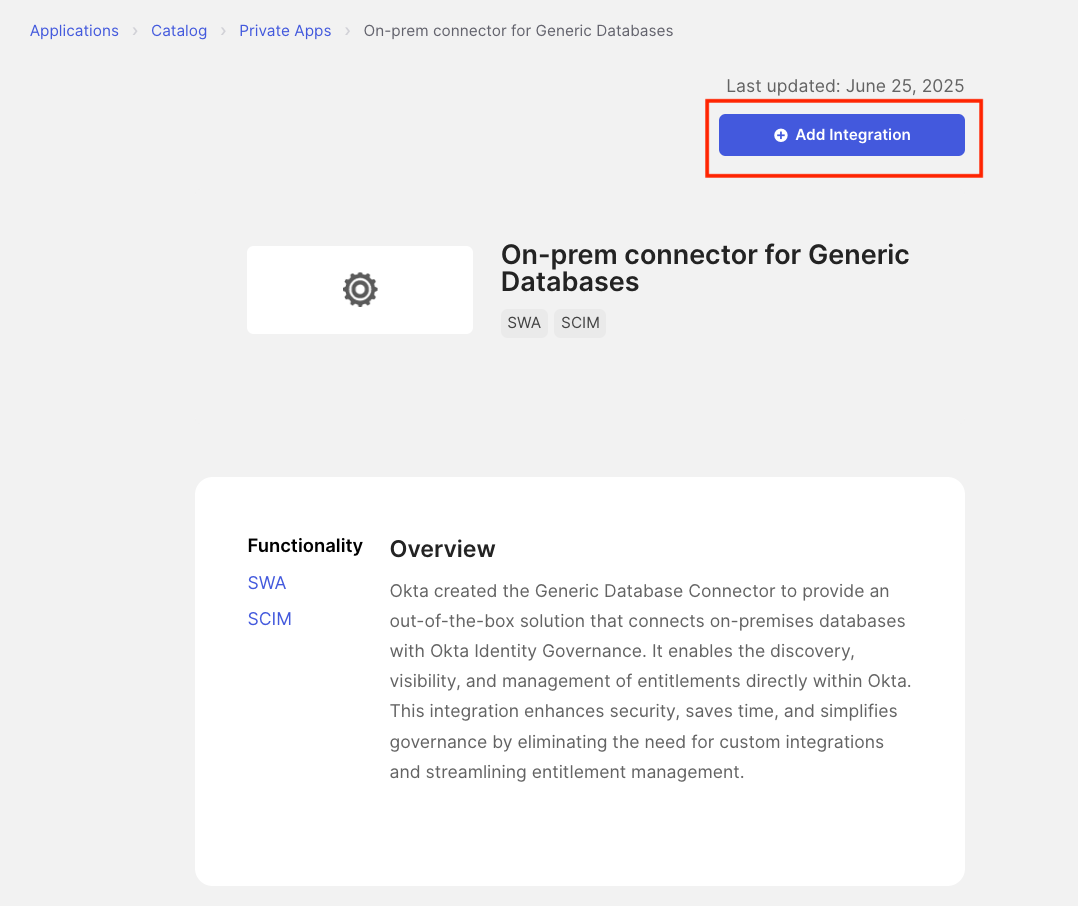
- Select “On-prem connector for Generic Databases” from the results
-
Add the Integration
- Click Add Integration
-
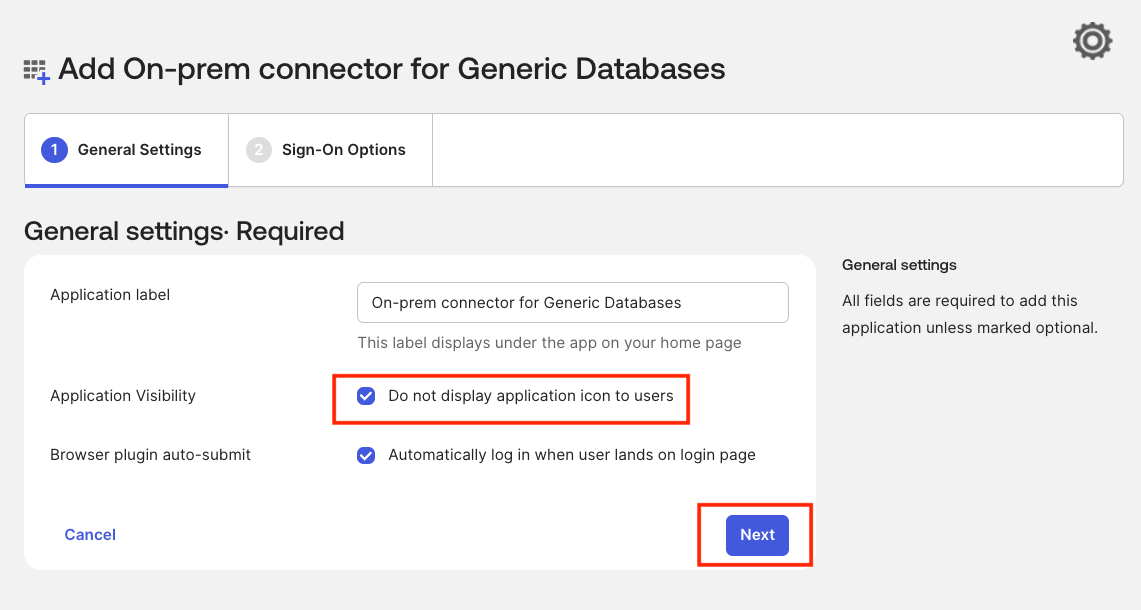
Configure Application Label
- Provide a name for the application in the Application Label field (Default name: “Generic Database Connector”)
- Check “Do not display application icon to users”
- Click Next
-
Complete Application Setup
- Leave all the other fields as default and click Done
-
Enable Entitlement Management
- In the General tab, scroll down to the Entitlement Management section
- Click Edit
- From the dropdown menu, select Enable
- Click Save
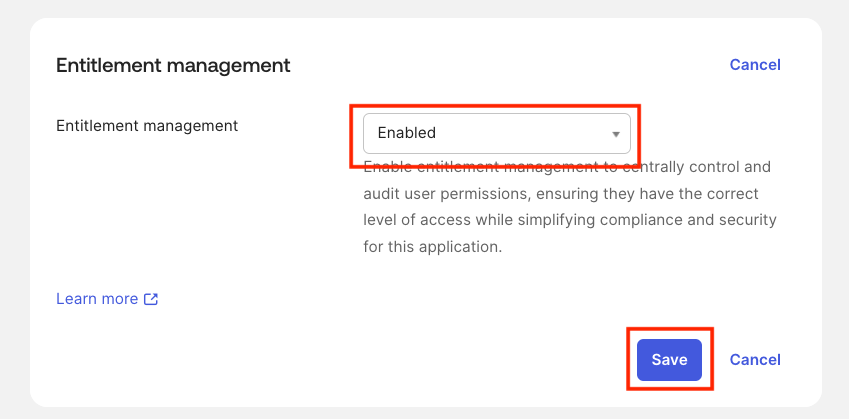 Once entitlement management is enabled, you’ll notice that the Governance tab now shows additional sub-tabs such as Entitlements, Bundles, etc.
Enable and Configure Provisioning #
-
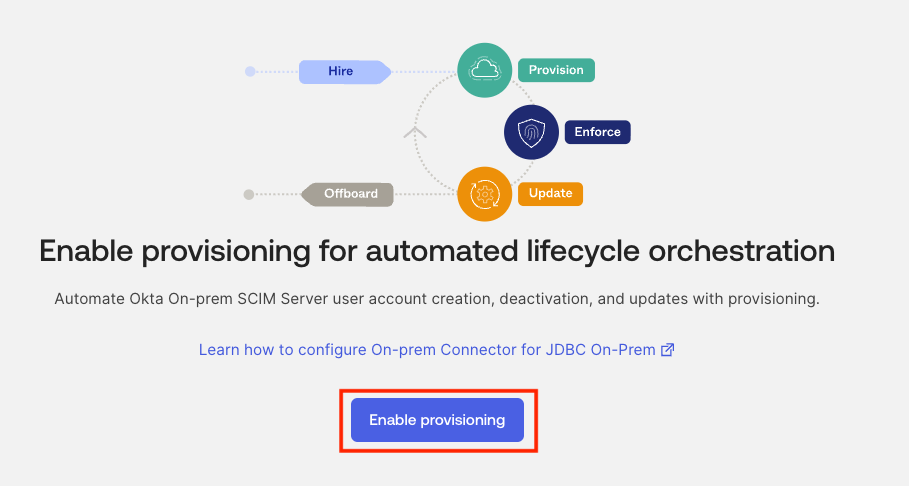
Enable Provisioning
- Navigate to the Provisioning tab
- Click Enable Provisioning
-
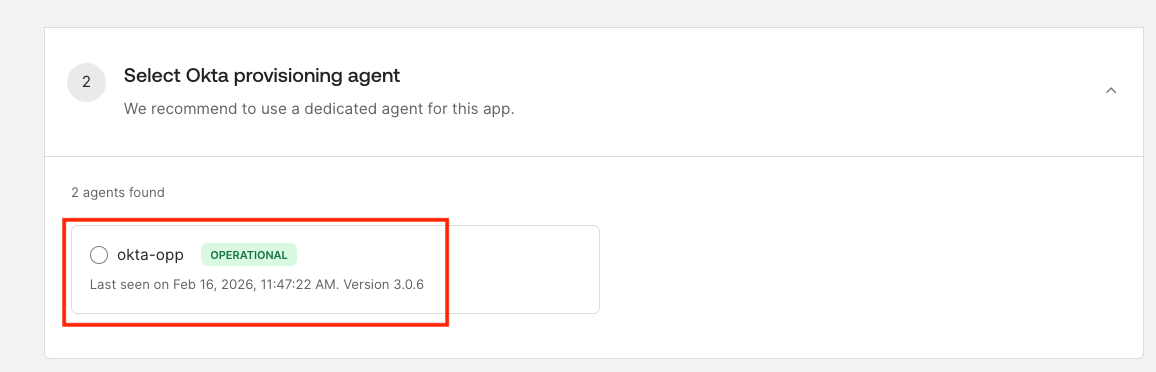
Select OPP Agent
- This page displays all available Okta Provisioning Agents (both active and inactive) in your Okta org
- Select your registered Okta Provisioning Agent
okta-oppfrom the list - Click Next
-
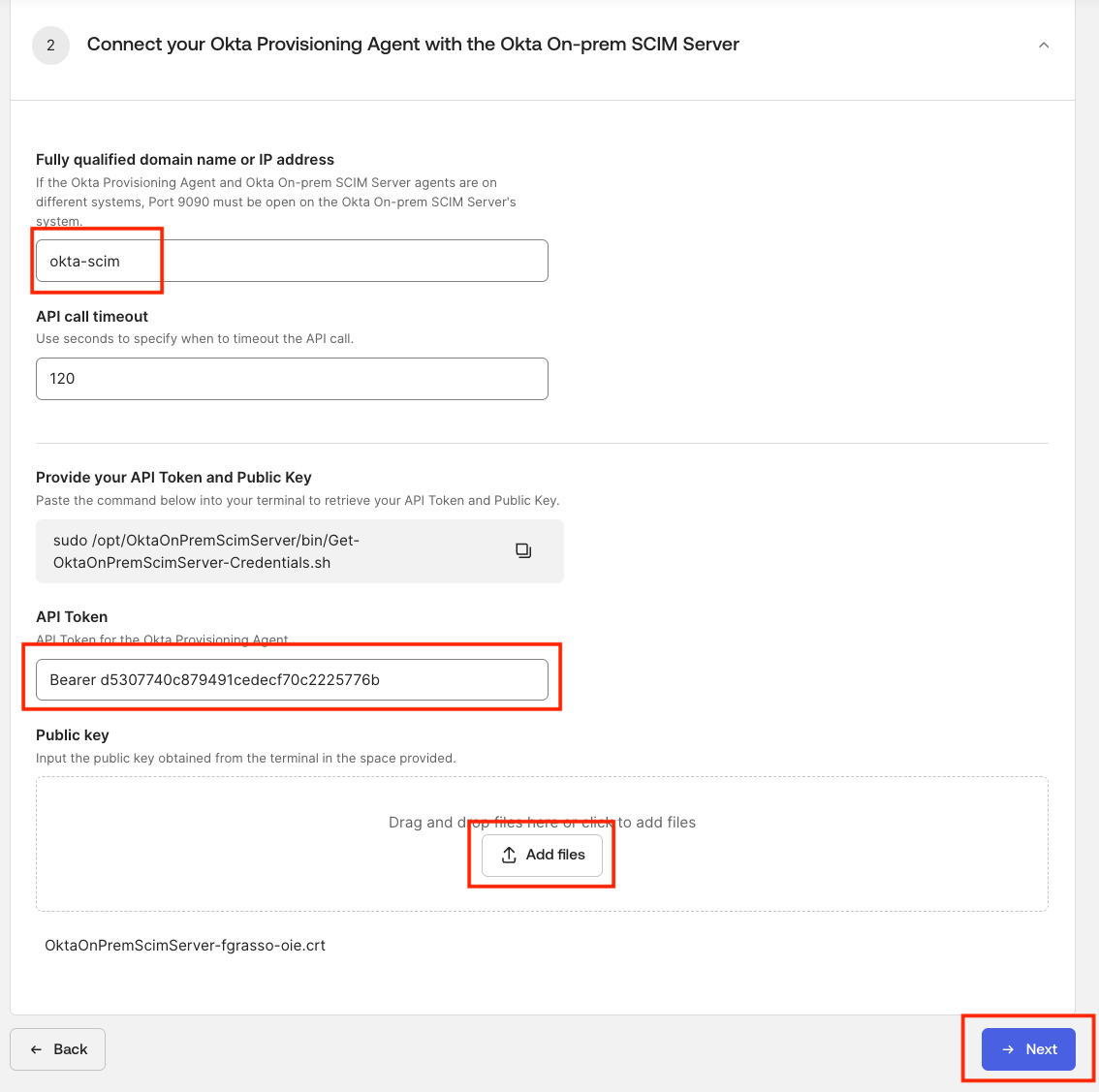
Configure SCIM Server Connection
-
Enter the SCIM Hostname:
okta-scim(must match the container name for internal connectivity) -
Enter the API Token with the
Bearerprefix (from SCIM Server credentials)- Example:
Bearer d5307740c879491cedecf70c2225776bIMPORTANT: When configuring the Okta application, you MUST add theBearerprefix before the token value, with a space betweenBearerand the token.
- Example:
-
Click Add Files under Public Key
-
Upload the certificate file (
.crt) from the host system./data/okta-scim/certs/OktaOnPremScimServer-*.crt-
Or save in a
.crtor.pemfile the certificate extacted with the command:docker compose exec okta-scim bash -c 'cat /opt/OktaOnPremScimServer/certs/OktaOnPremScimServer-*.crt'
-
-
Click Next
-
-
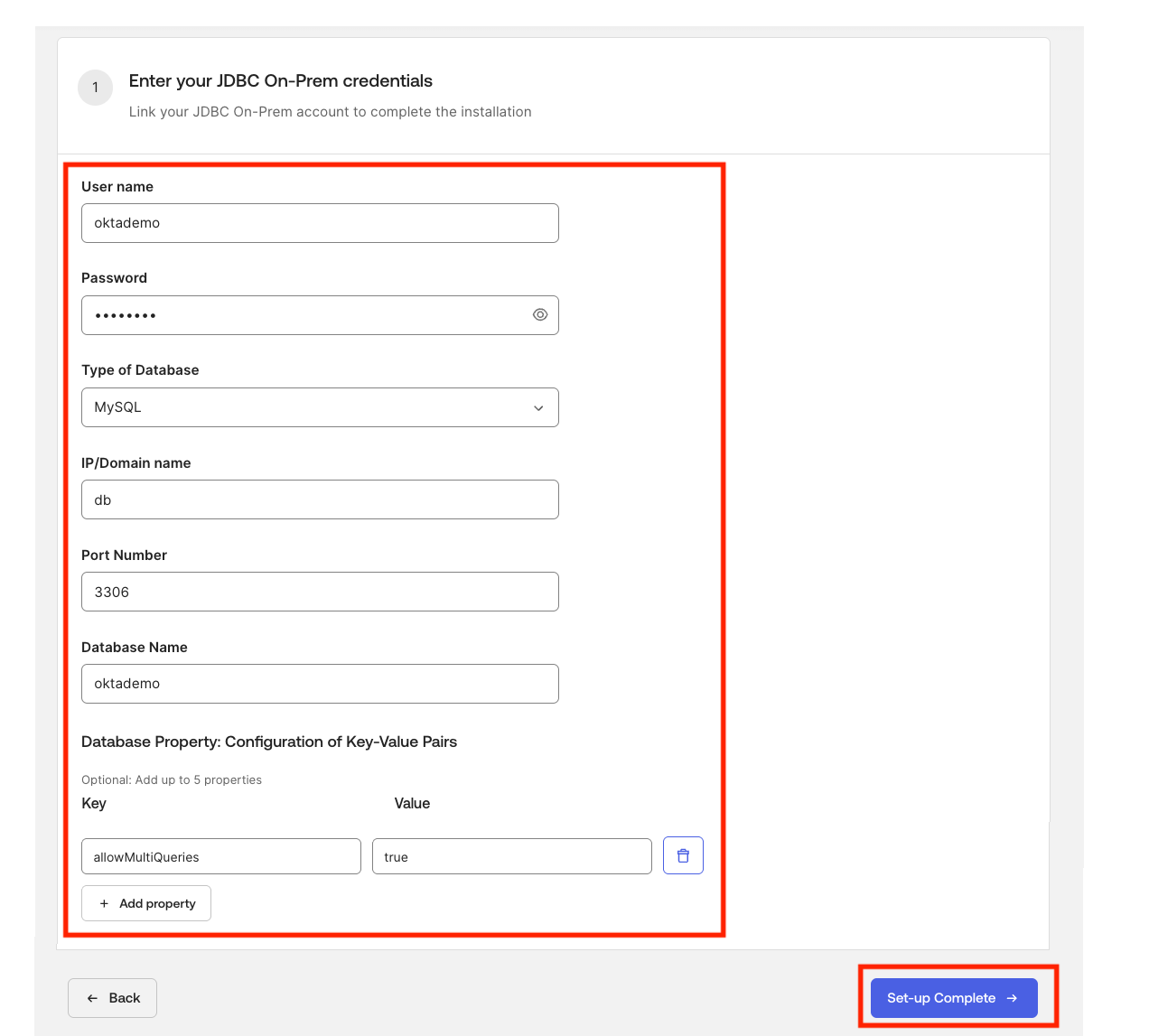
Configure Database Connection
- Provide the database connection details (change them if you are not using the default values in your
.envfile):- Username:
oktademo - Password:
oktademo - Type of Database: Select
MySQL - IP/Domain Name:
db(must match the container name for internal connectivity) - Port:
3306 - Database Name:
oktademo - Add the following additional key/value pair in the Database Property: Configuration of Key-Value Pairs section:
- Key:
allowMultiQueries - Value:
true
- Key:
- Username:
- Click Setup Complete
- Provide the database connection details (change them if you are not using the default values in your
-
You will see a Connecting agents… pop-up for a few seconds.
-
Connection Success: Once the connection is successful, you’ll be directed to the Integration tab of the Provisioning section. From here, you can proceed to configure Schema Discovery & Import and Provisioning operations.
Configure Import Operations (To Okta) #
Import operations retrieve data from the database and bring it into Okta.
Navigate to Import Settings #
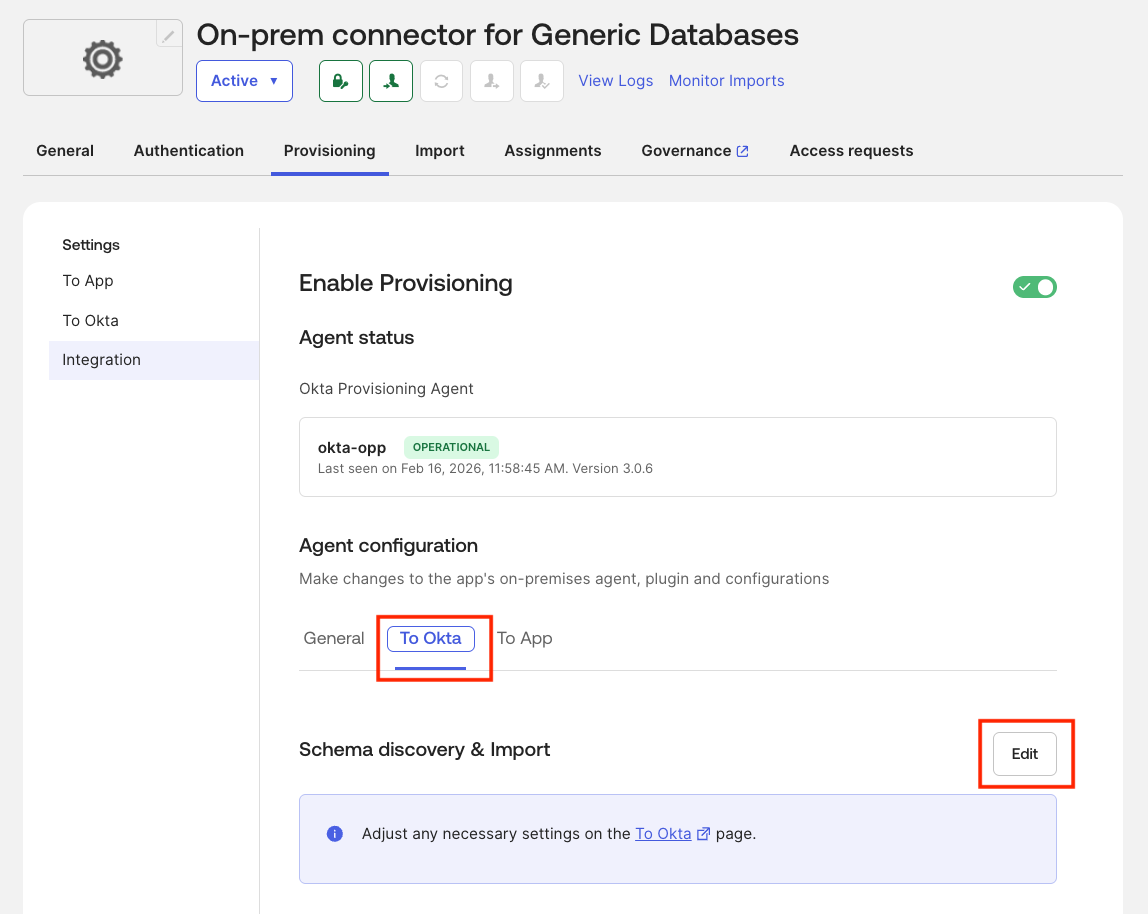
- Go to Okta Admin Console → Applications → Generic Database Connector
- Navigate to the Provisioning tab
- Go to Integration → To Okta
- Click Edit next to Schema discovery & Import
1. Get Users #
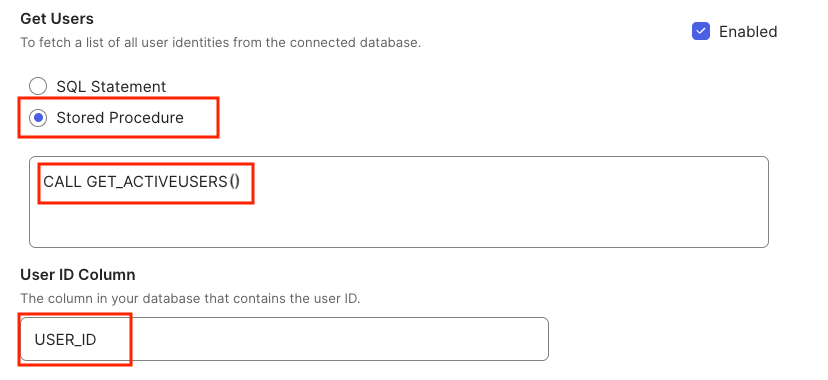
Import all active users from the database.
Configuration:
-
✅ Check Enabled
-
Option 1 - Select SQL Statement, and enter the SQL query:
SELECT USER_ID, USERNAME, FIRSTNAME, LASTNAME, MIDDLENAME, EMAIL, DISPLAYNAME, NICKNAME, MOBILEPHONE, STREETADDRESS, CITY, STATE, ZIPCODE, COUNTRYCODE, TIMEZONE, ORGANIZATION, DEPARTMENT, MANAGERID, MANAGER, TITLE, EMPLOYEENUMBER, HIREDATE, TERMINATIONDATE, PASSWORD_HASH, IS_ACTIVE FROM USERS WHERE IS_ACTIVE = 1 -
Option 2 - Select Stored Procedure (Recommended), and enter the stored procedure call:
CALL GET_ACTIVEUSERS() -
User ID Column:
USER_ID
IS_ACTIVE = 1) with all fields from the USERS table.
2. Get All Entitlements #
Import all available entitlements from the database.
Configuration:
-
✅ Check Enabled
-
Option 1 - Select SQL Statement, and enter the SQL query:
SELECT ENT_ID, ENT_NAME, ENT_DESCRIPTION FROM ENTITLEMENTS -
Option 2 - Select Stored Procedure (Recommended), and enter the stored procedure call:
CALL GET_ALL_ENTITLEMENTS() -
Entitlement ID Column:
ENT_ID -
Entitlement Display Column:
ENT_NAME
3. Get User by ID #
Retrieve specific user details by their USER_ID.
Configuration:
-
✅ Check Enabled
-
Option 1 - Select SQL Statement, and enter the SQL query:
SELECT USER_ID, USERNAME, FIRSTNAME, LASTNAME, MIDDLENAME, EMAIL, DISPLAYNAME, NICKNAME, MOBILEPHONE, STREETADDRESS, CITY, STATE, ZIPCODE, COUNTRYCODE, TIMEZONE, ORGANIZATION, DEPARTMENT, MANAGERID, MANAGER, TITLE, EMPLOYEENUMBER, HIREDATE, TERMINATIONDATE, PASSWORD_HASH, IS_ACTIVE FROM USERS WHERE USER_ID = ? -
Option 2 - Select Stored Procedure (Recommended), and enter the stored procedure call:
CALL GET_USER_BY_ID(?) -
Map Parameters to Fields:
- Parameter 1:
DATABASE_FIELD→USER_ID
- Parameter 1:
4. Get User Entitlements #
Retrieve all entitlements assigned to a specific user.
Configuration:
-
✅ Check Enabled
-
Option 1 - Select SQL Statement, and enter the SQL query:
SELECT UE.USERENTITLEMENT_ID, UE.USER_ID, U.USERNAME, U.EMAIL, UE.ENT_ID, E.ENT_NAME, E.ENT_DESCRIPTION, UE.ASSIGNEDDATE FROM USERENTITLEMENTS UE JOIN USERS U ON UE.USER_ID = U.USER_ID JOIN ENTITLEMENTS E ON UE.ENT_ID = E.ENT_ID WHERE UE.USER_ID = ? -
Option 2 - Select Stored Procedure (Recommended), and enter the stored procedure call:
CALL GET_USER_ENTITLEMENT(?) -
Map Parameters to Fields:
- Parameter 1:
DATABASE_FIELD→USER_ID
- Parameter 1:
Configure Provisioning Operations (To App) #
Provisioning operations push changes from Okta to the database.
Navigate to Provisioning Settings #
- Stay in the Provisioning tab
- Go to Integration → To App
- Click Edit next to Provisioning
5. Create User #
Create a new user in the database when assigned in Okta.
Configuration:
-
✅ Check Enabled
-
Option 1 - Select SQL Statement, and enter the SQL query:
INSERT INTO USERS (USER_ID, USERNAME, FIRSTNAME, LASTNAME, EMAIL, MIDDLENAME, DISPLAYNAME, NICKNAME, MOBILEPHONE, STREETADDRESS, CITY, STATE, ZIPCODE, COUNTRYCODE, TIMEZONE, ORGANIZATION, DEPARTMENT, MANAGERID, MANAGER, TITLE, EMPLOYEENUMBER, HIREDATE, TERMINATIONDATE, PASSWORD_HASH) VALUES (?, ?, ?, ?, ?, ?, ?, ?, ?, ?, ?, ?, ?, ?, ?, ?, ?, ?, ?, ?, ?, ?, ?, ?) -
Option 2 - Select Stored Procedure (Recommended), and enter the stored procedure call:
CALL CREATE_USER(?, ?, ?, ?, ?, ?, ?, ?, ?, ?, ?, ?, ?, ?, ?, ?, ?, ?, ?, ?, ?, ?, ?, ?) -
Map Parameters to Fields:
- Parameter 1:
DATABASE_FIELD→USER_ID(required) - Parameter 2:
DATABASE_FIELD→USERNAME(required) - Parameter 3:
DATABASE_FIELD→FIRSTNAME(required) - Parameter 4:
DATABASE_FIELD→LASTNAME(required) - Parameter 5:
DATABASE_FIELD→EMAIL(required) - Parameter 6:
DATABASE_FIELD→MIDDLENAME - Parameter 7:
DATABASE_FIELD→DISPLAYNAME - Parameter 8:
DATABASE_FIELD→NICKNAME - Parameter 9:
DATABASE_FIELD→MOBILEPHONE - Parameter 10:
DATABASE_FIELD→STREETADDRESS - Parameter 11:
DATABASE_FIELD→CITY - Parameter 12:
DATABASE_FIELD→STATE - Parameter 13:
DATABASE_FIELD→ZIPCODE - Parameter 14:
DATABASE_FIELD→COUNTRYCODE - Parameter 15:
DATABASE_FIELD→TIMEZONE - Parameter 16:
DATABASE_FIELD→ORGANIZATION - Parameter 17:
DATABASE_FIELD→DEPARTMENT - Parameter 18:
DATABASE_FIELD→MANAGERID - Parameter 19:
DATABASE_FIELD→MANAGER - Parameter 20:
DATABASE_FIELD→TITLE - Parameter 21:
DATABASE_FIELD→EMPLOYEENUMBER - Parameter 22:
DATABASE_FIELD→HIREDATE - Parameter 23:
DATABASE_FIELD→TERMINATIONDATE - Parameter 24:
DATABASE_FIELD→PASSWORD_HASH
- Parameter 1:
6. Update User #
Update existing user attributes in the database.
Configuration:
-
✅ Check Enabled
-
Option 1 - Select SQL Statement, and enter the SQL query:
UPDATE USERS SET USERNAME = ?, FIRSTNAME = ?, LASTNAME = ?, EMAIL = ?, MIDDLENAME = ?, DISPLAYNAME = ?, NICKNAME = ?, MOBILEPHONE = ?, STREETADDRESS = ?, CITY = ?, STATE = ?, ZIPCODE = ?, COUNTRYCODE = ?, TIMEZONE = ?, ORGANIZATION = ?, DEPARTMENT = ?, MANAGERID = ?, MANAGER = ?, TITLE = ?, EMPLOYEENUMBER = ?, HIREDATE = ?, TERMINATIONDATE = ?, PASSWORD_HASH = ? WHERE USER_ID = ? -
Option 2 - Select Stored Procedure (Recommended), and enter the stored procedure call:
CALL UPDATE_USER(?, ?, ?, ?, ?, ?, ?, ?, ?, ?, ?, ?, ?, ?, ?, ?, ?, ?, ?, ?, ?, ?, ?, ?) -
Map Parameters to Fields:
- Parameter 1:
DATABASE_FIELD→USER_ID(required) - Parameter 2:
DATABASE_FIELD→USERNAME(required) - Parameter 3:
DATABASE_FIELD→FIRSTNAME(required) - Parameter 4:
DATABASE_FIELD→LASTNAME(required) - Parameter 5:
DATABASE_FIELD→EMAIL(required) - Parameter 6:
DATABASE_FIELD→MIDDLENAME - Parameter 7:
DATABASE_FIELD→DISPLAYNAME - Parameter 8:
DATABASE_FIELD→NICKNAME - Parameter 9:
DATABASE_FIELD→MOBILEPHONE - Parameter 10:
DATABASE_FIELD→STREETADDRESS - Parameter 11:
DATABASE_FIELD→CITY - Parameter 12:
DATABASE_FIELD→STATE - Parameter 13:
DATABASE_FIELD→ZIPCODE - Parameter 14:
DATABASE_FIELD→COUNTRYCODE - Parameter 15:
DATABASE_FIELD→TIMEZONE - Parameter 16:
DATABASE_FIELD→ORGANIZATION - Parameter 17:
DATABASE_FIELD→DEPARTMENT - Parameter 18:
DATABASE_FIELD→MANAGERID - Parameter 19:
DATABASE_FIELD→MANAGER - Parameter 20:
DATABASE_FIELD→TITLE - Parameter 21:
DATABASE_FIELD→EMPLOYEENUMBER - Parameter 22:
DATABASE_FIELD→HIREDATE - Parameter 23:
DATABASE_FIELD→TERMINATIONDATE - Parameter 24:
DATABASE_FIELD→PASSWORD_HASH
- Parameter 1:
7. Activate User #
Activate a user account.
Configuration:
-
✅ Check Enabled
-
Option 1 - Select SQL Statement, and enter the SQL query:
UPDATE USERS SET IS_ACTIVE = 1 WHERE USER_ID = ? -
Option 2 - Select Stored Procedure (Recommended), and enter the stored procedure call:
CALL ACTIVATE_USER(?) -
Map Parameters to Fields:
- Parameter 1:
DATABASE_FIELD→USER_ID
- Parameter 1:
IS_ACTIVE = TRUE for the specified user in the USERS table.
8. Deactivate User #
Deactivate a user account.
Configuration:
-
✅ Check Enabled
-
Option 1 - Select SQL Statement, and enter the SQL query:
UPDATE USERS SET IS_ACTIVE = 0 WHERE USER_ID = ? -
Option 2 - Select Stored Procedure (Recommended), and enter the stored procedure call:
CALL DEACTIVATE_USER(?) -
Map Parameters to Fields:
- Parameter 1:
DATABASE_FIELD→USER_ID
- Parameter 1:
IS_ACTIVE = FALSE for the specified user in the USERS table.
9. Add Entitlement to User #
Assign an entitlement to a user.
Configuration:
-
✅ Check Enabled
-
Option 1 - Select SQL Statement, and enter the SQL query:
INSERT INTO USERENTITLEMENTS (USER_ID, ENT_ID) VALUES (?, ?) -
Option 2 - Select Stored Procedure (Recommended), and enter the stored procedure call:
CALL ADD_ENTITLEMENT_TO_USER(?, ?) -
Map Parameters to Fields:
- Parameter 1:
DATABASE_FIELD→USER_ID - Parameter 2:
DATABASE_FIELD→ENT_ID
- Parameter 1:
10. Remove Entitlement from User #
Revoke an entitlement from a user.
Configuration:
-
✅ Check Enabled
-
Option 1 - Select SQL Statement, and enter the SQL query:
DELETE FROM USERENTITLEMENTS WHERE USER_ID = ? AND ENT_ID = ? -
Option 2 - Select Stored Procedure (Recommended), and enter the stored procedure call:
CALL REMOVE_ENTITLEMENT_FROM_USER(?, ?) -
Map Parameters to Fields:
- Parameter 1:
DATABASE_FIELD→USER_ID - Parameter 2:
DATABASE_FIELD→ENT_ID
- Parameter 1:
Configure User Profile Attributes #
Before enabling provisioning features, you need to configure attribute mappings between Okta and the database.
-
Navigate to Profile Editor
- In Okta Admin Console, go to Directory → Profile Editor
-
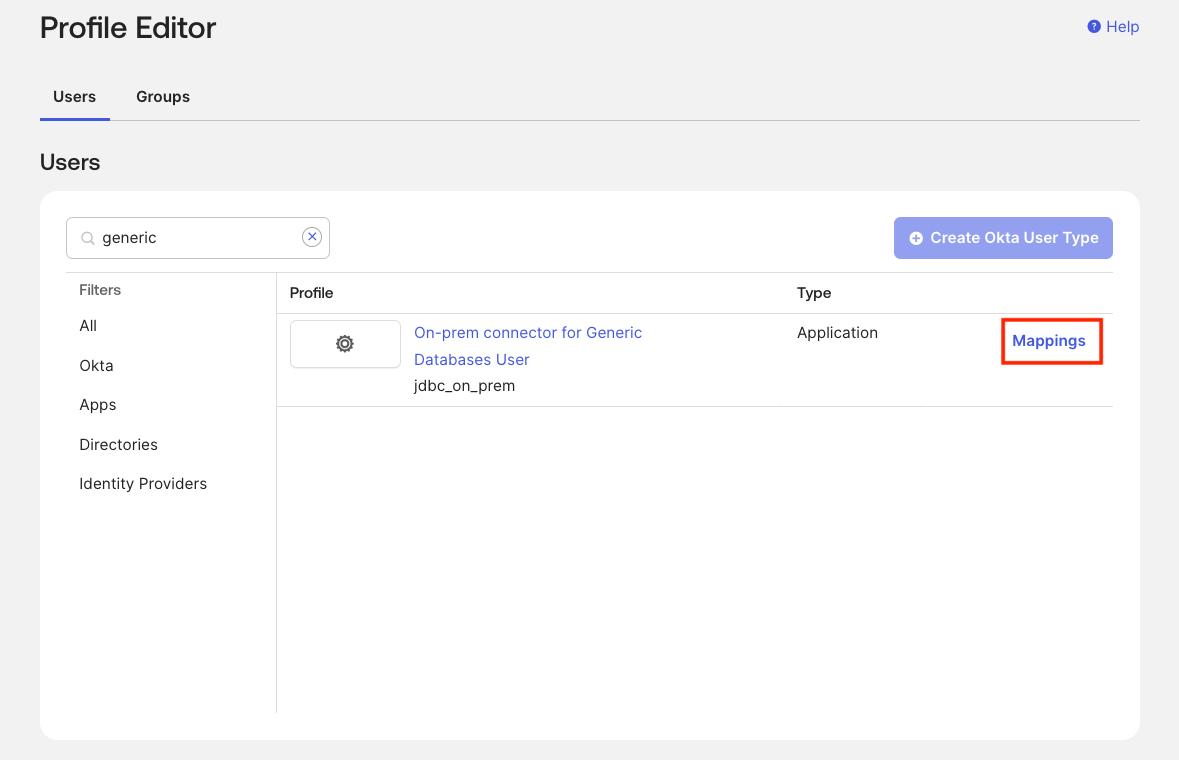
Select Generic Database Connector User Profile
- Search for “Generic Database Connector”
- Individuate the profile named “Generic Database Connector User” and click Mappings.
-
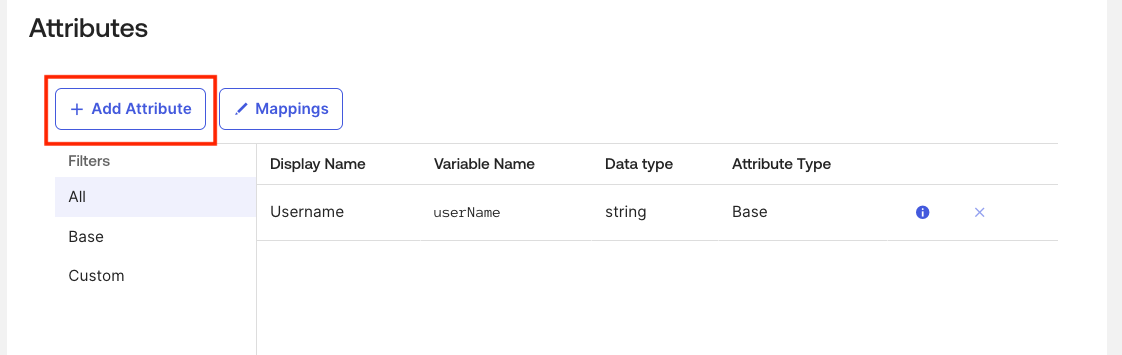
Add Attributes from Database
- Under Attributes, you’ll see that only the Username attribute is present
- Click + Add Attribute
-
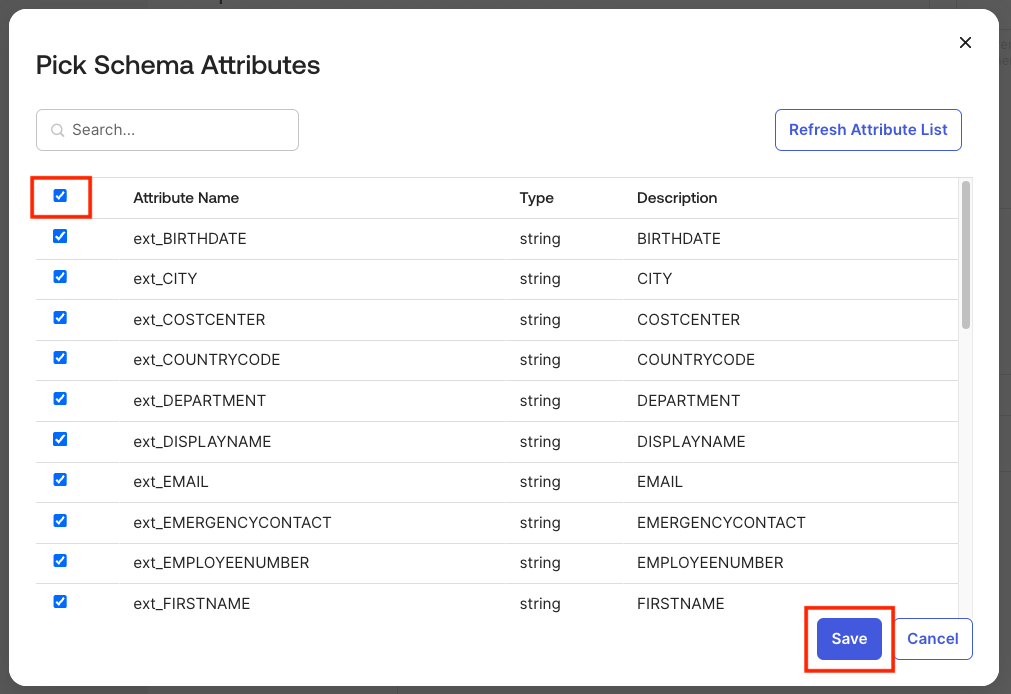
Import Database Attributes
- The next page displays all attributes imported from the database
- Check all the required attributes:
ext_USER_IDext_FIRSTNAMEext_LASTNAMEext_EMAILext_MANAGERext_TITLE- And any other custom attributes (you can click the first checkbox to select all)
- You can click the first box at the top to select all
- Click Save
-
Verify Attributes
- The Generic Database Connector user profile now contains all attributes needed for provisioning operations
Generic Database Connector User to Okta User #
This mapping governs how user accounts from the database are imported into Okta.
Configuration Steps:
-
Navigate to Mappings
-
Within the Generic Database Connector User profile, click Mappings

-
-
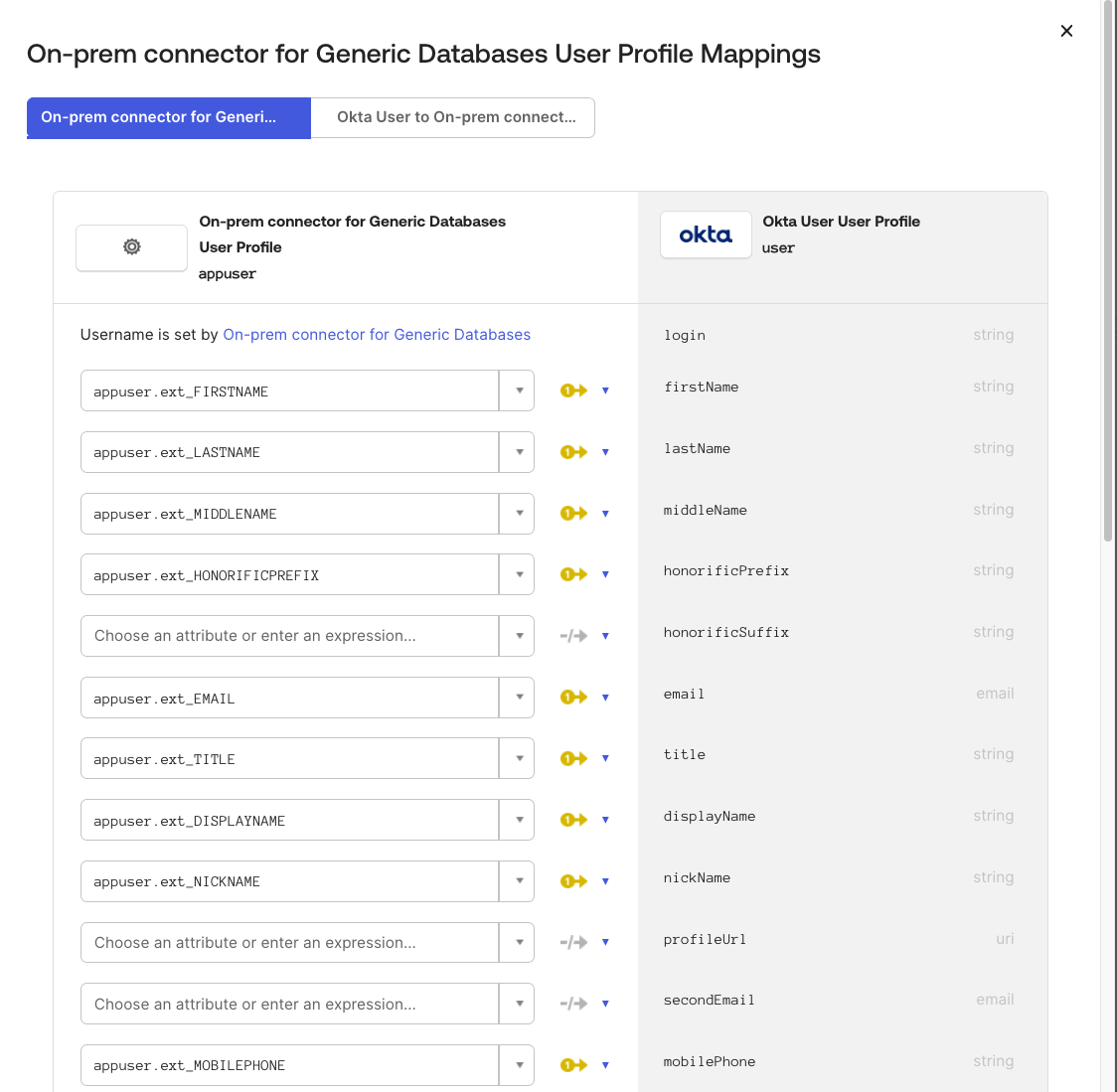
Configure Import Mappings
- By default, Generic Database Connector User to Okta User is selected
- You’ll see that mapping for
loginis present, but others are empty - Set up mappings for additional attributes as needed
-
Map Attributes
- Under Okta User Profile, click the dropdown in Choose an attribute or enter an expression
- Select the corresponding attribute from Generic Database Connector User Profile
Example mappings:
appuser.ext_FIRSTNAME→firstNameappuser.ext_LASTNAME→lastNameappuser.ext_EMAIL→emailappuser.ext_TITLE→titleappuser.ext_MANAGER→managerId
-
Save Mappings
- Click Save
- Click Apply updates
Okta User to Generic Database Connector User #
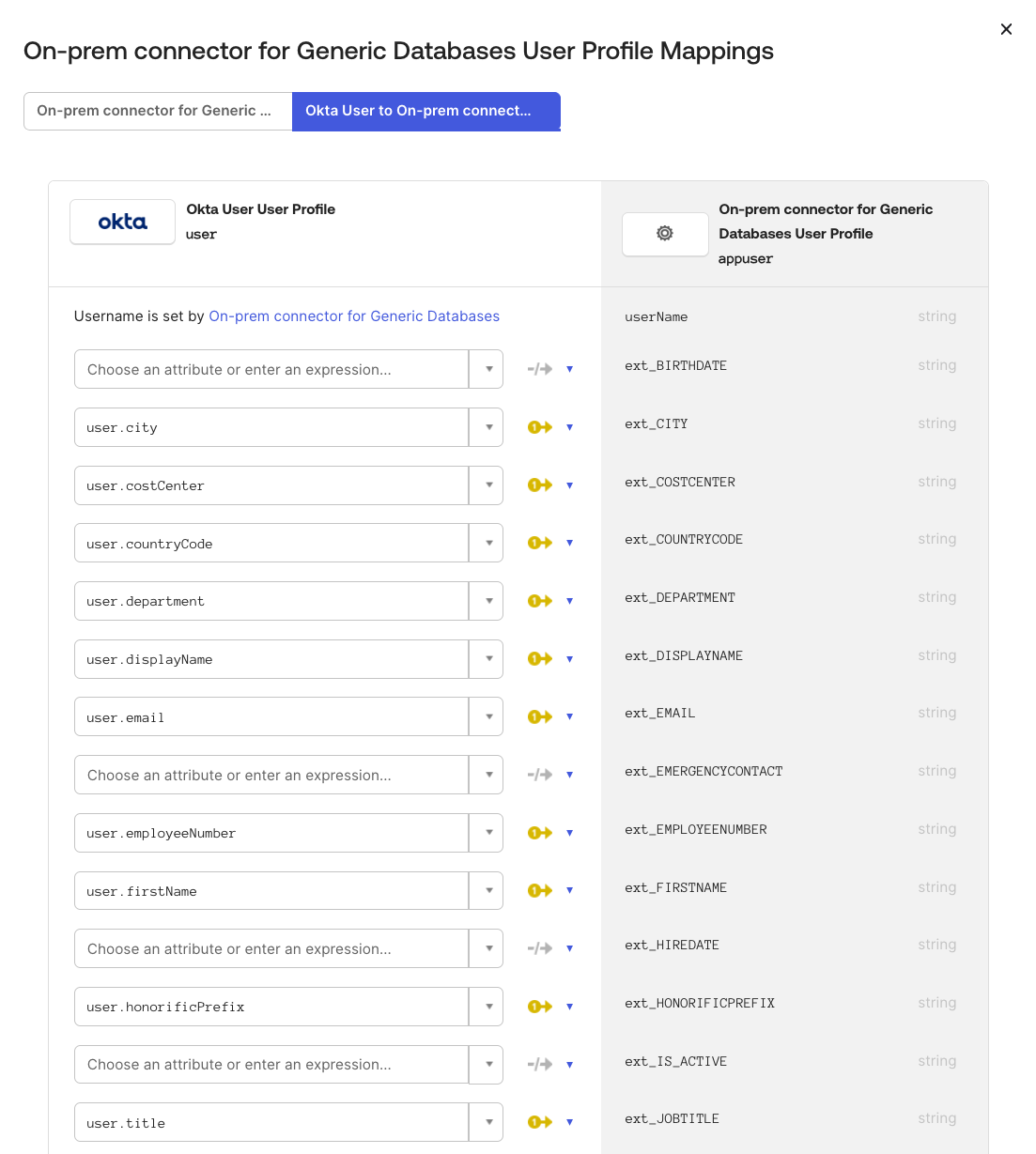
This mapping dictates how user attributes in Okta correlate with the database user profile, facilitating user creation or modification in the database.
Configuration Steps:
-
Navigate to Mappings
- Within the Generic Database Connector User profile, click Mappings
-
Select Okta User to Generic Database Connector User
- Click Okta User to Generic Database Connector User

-
Map Attributes
- Click the dropdown under Choose an attribute or enter an expression
- Select the appropriate attributes from Okta User Profile
Example mappings:
login→ext_USER_IDlogin→ext_USERNAMEfirstName→ext_FIRSTNAMElastName→ext_LASTNAMEemail→ext_EMAILmanagerId→ext_MANAGERtitle→ext_TITLE
-
Save Mappings
- Click Save Mappings
Enable Provisioning Features #
-
Navigate to Provisioning Settings
- In Okta Admin Console, go to Applications → Generic Database Connector
- Click the Provisioning tab
- Navigate to Settings → To App
-
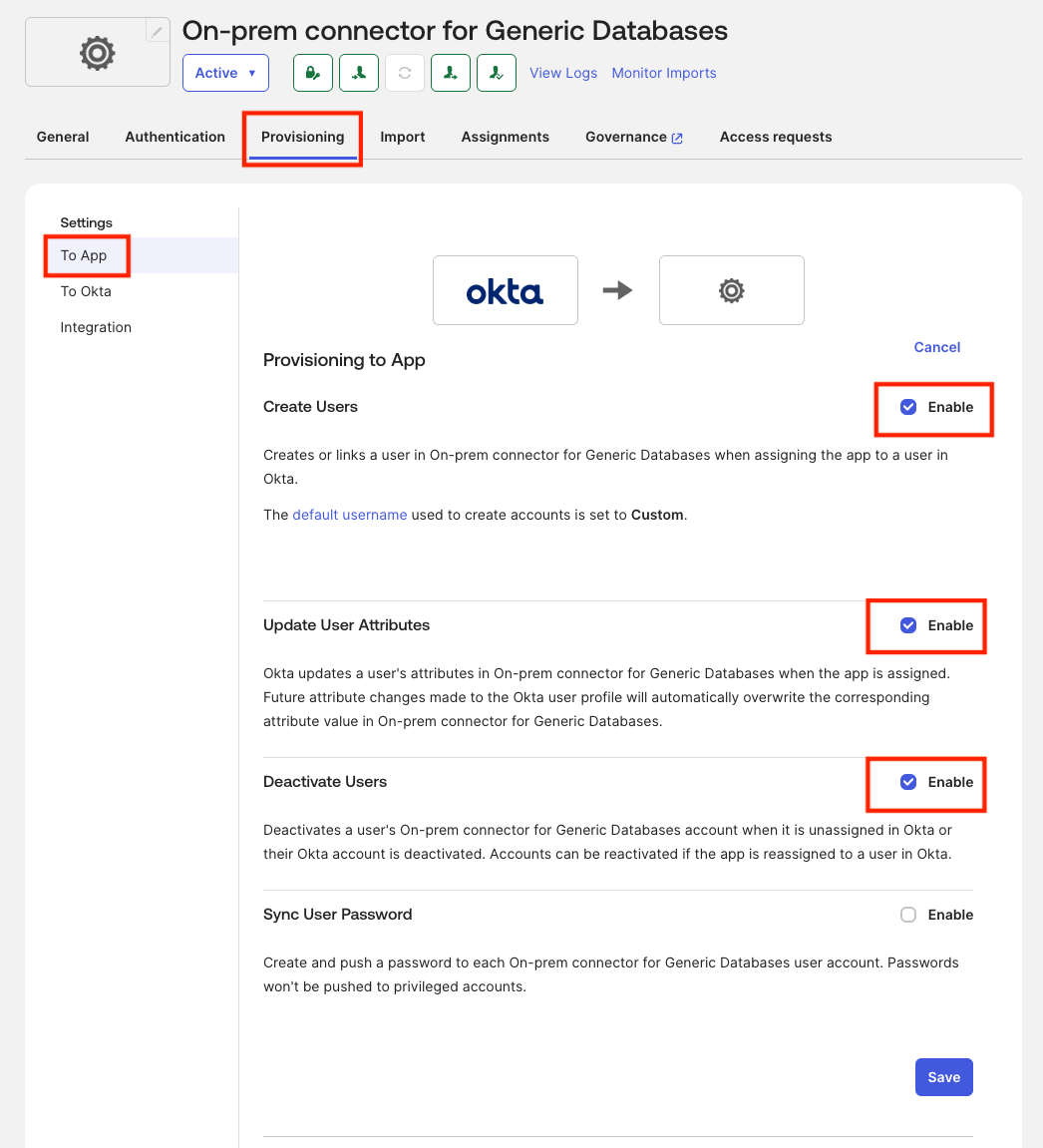
Edit Provisioning Settings
- Click Edit in the Provisioning to App section
-
Enable Provisioning Features
- ✅ Create Users: Enable to create users in the database when assigned in Okta
- ✅ Update User Attributes: Enable to sync attribute changes from Okta to database
- ✅ Deactivate Users: Enable to deactivate users in database when unassigned from Okta
-
Save Configuration
- Click Save
Configure Import Schedule #
-
Navigate to Import Settings
- Go to Applications → Generic Database Connector
- Click Provisioning tab
- Navigate to Settings → To Okta
- Click Edit next to General
-
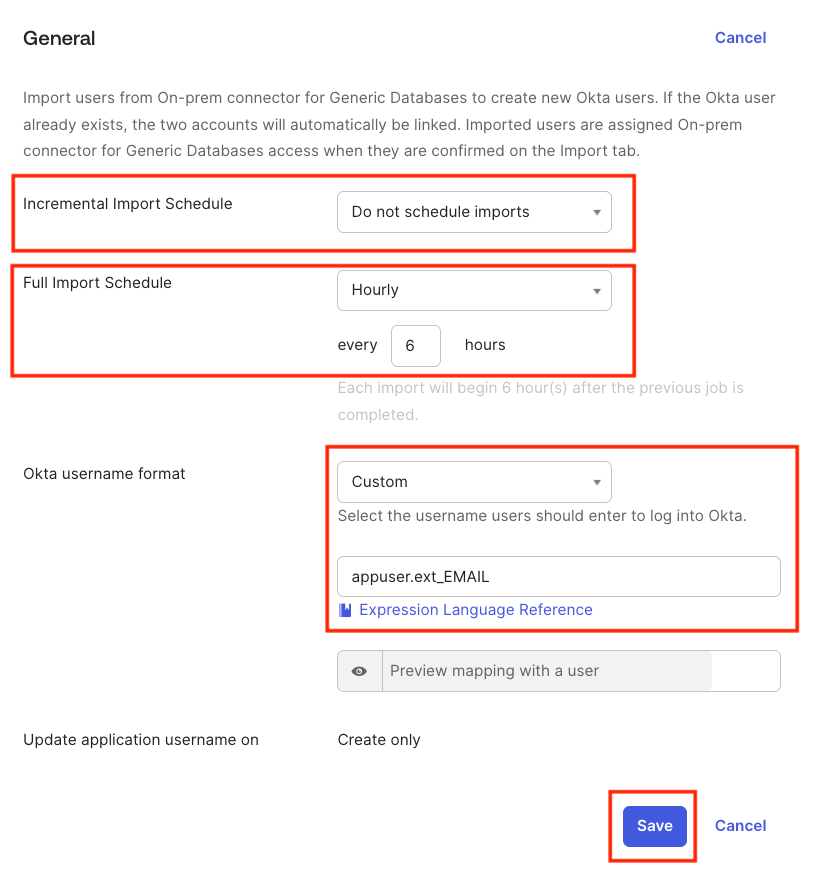
Configure Import Schedule
- Under Full Import Schedule, select the desired frequency for importing users (e.g., every 6 hours)
- Do not configure Incremental Import Schedule as the database does not have a timestamp field to track changes
-
Configure Okta Username Format
- Under Okta username format, select Custom from the dropdown
- Enter:
appuser.ext_EMAILin the textbox - This ensures usernames are in email format using the
appuser.ext_USERNAMEattribute
-
Save Configuration
- Click Save
Testing the Integration #
With configuration complete, it’s time to test the full integration workflow.
Test #1: Import Users from Database #
This test imports existing database users into Okta.
-
Navigate to Import Tab
- Go to Applications → Generic Database Connector
- Click the Import tab
-
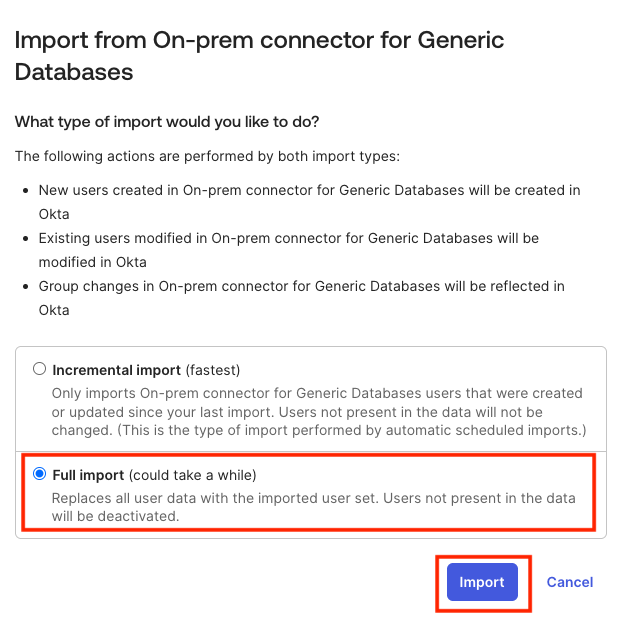
Start Import
- Click Import Now
- Select Full Import
- Click Import
-
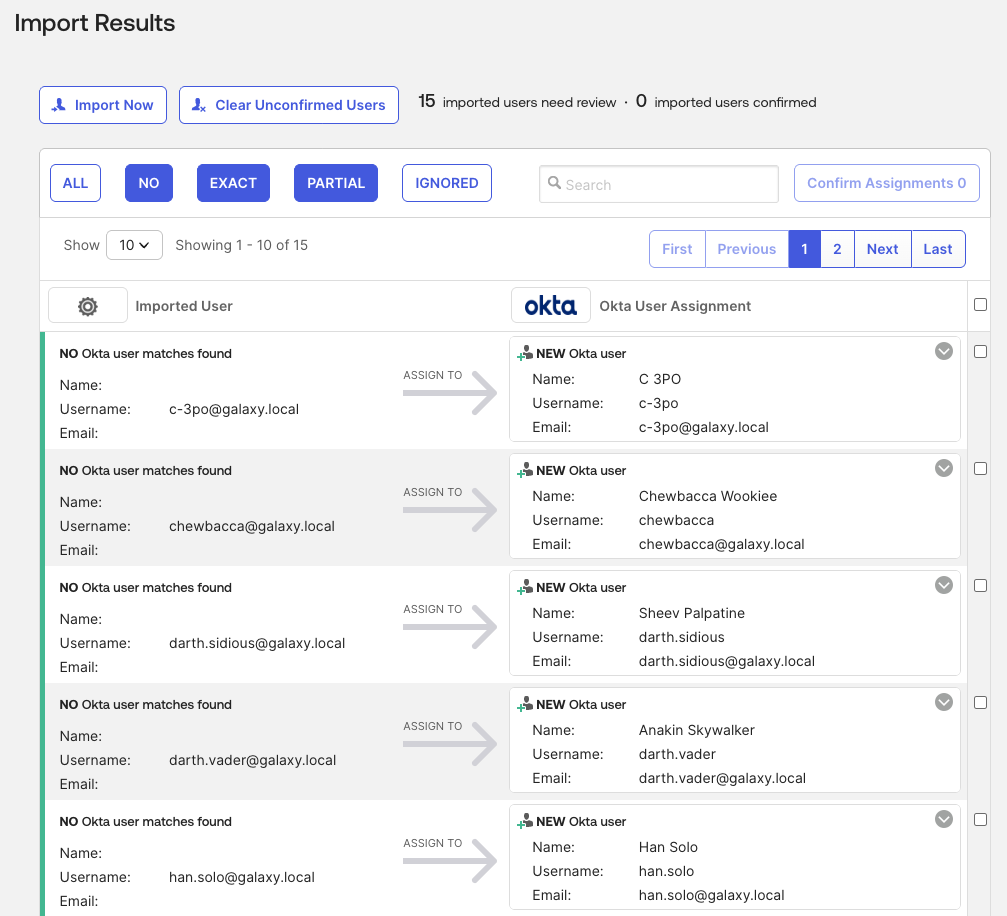
Review Import Results
- Once import completes, you’ll see an Import Success message
- Review the list of users imported from the database
-
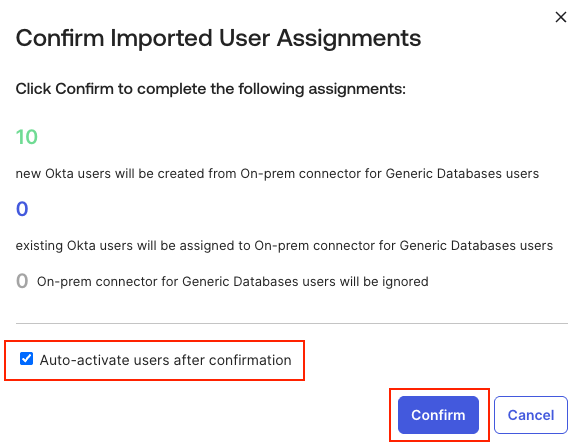
Confirm User Assignments
- By default, imported users require manual confirmation (configurable in Provisioning → To Okta → User Creation & Matching)
- Select the users you want to import into Okta
- Click Confirm Assignments
- Select Auto-activate users after confirmation
- Click Confirm when prompted
-
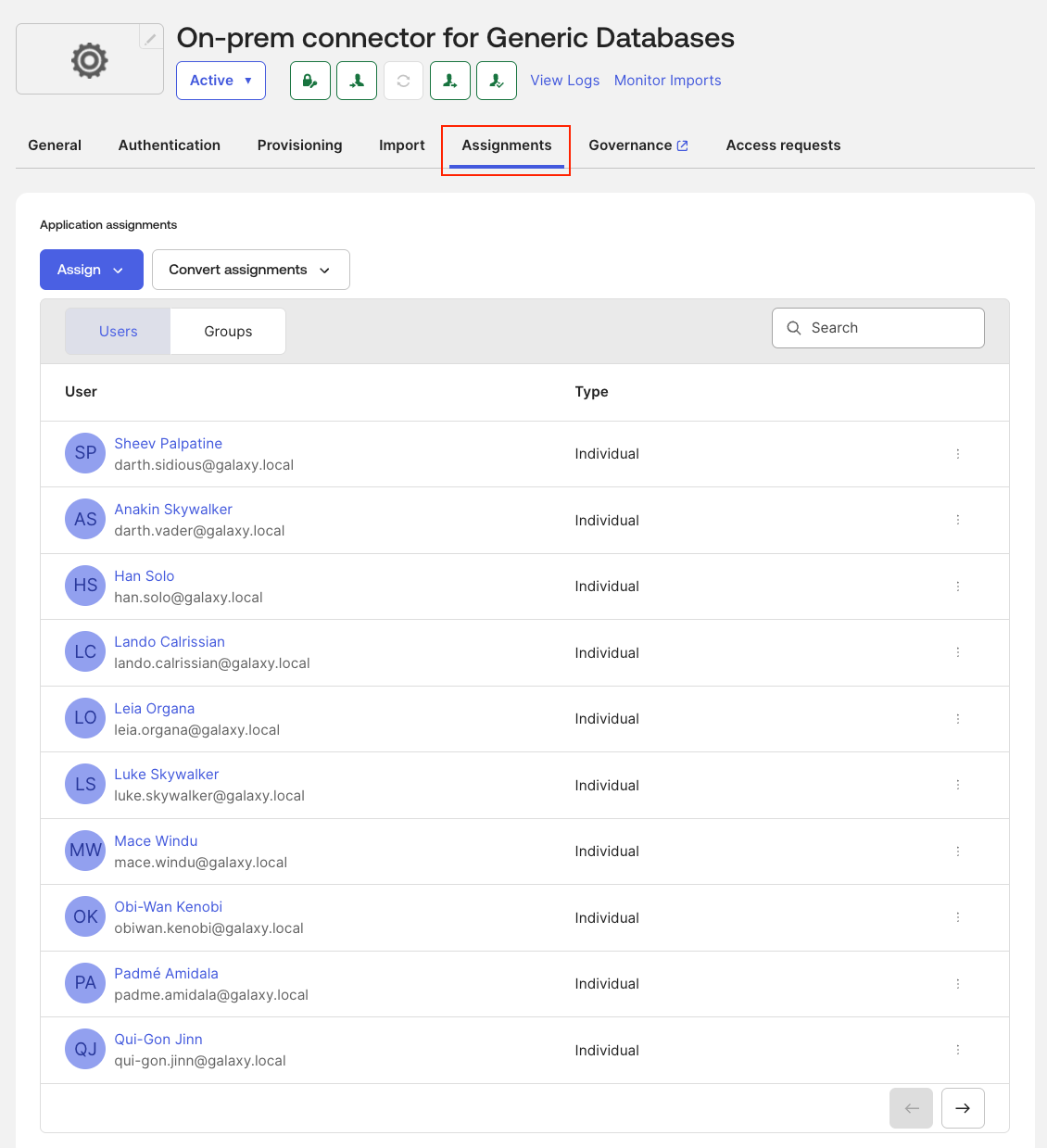
Verify Imported Users
- Navigate to the Assignments tab
- Verify that imported users are now visible
-
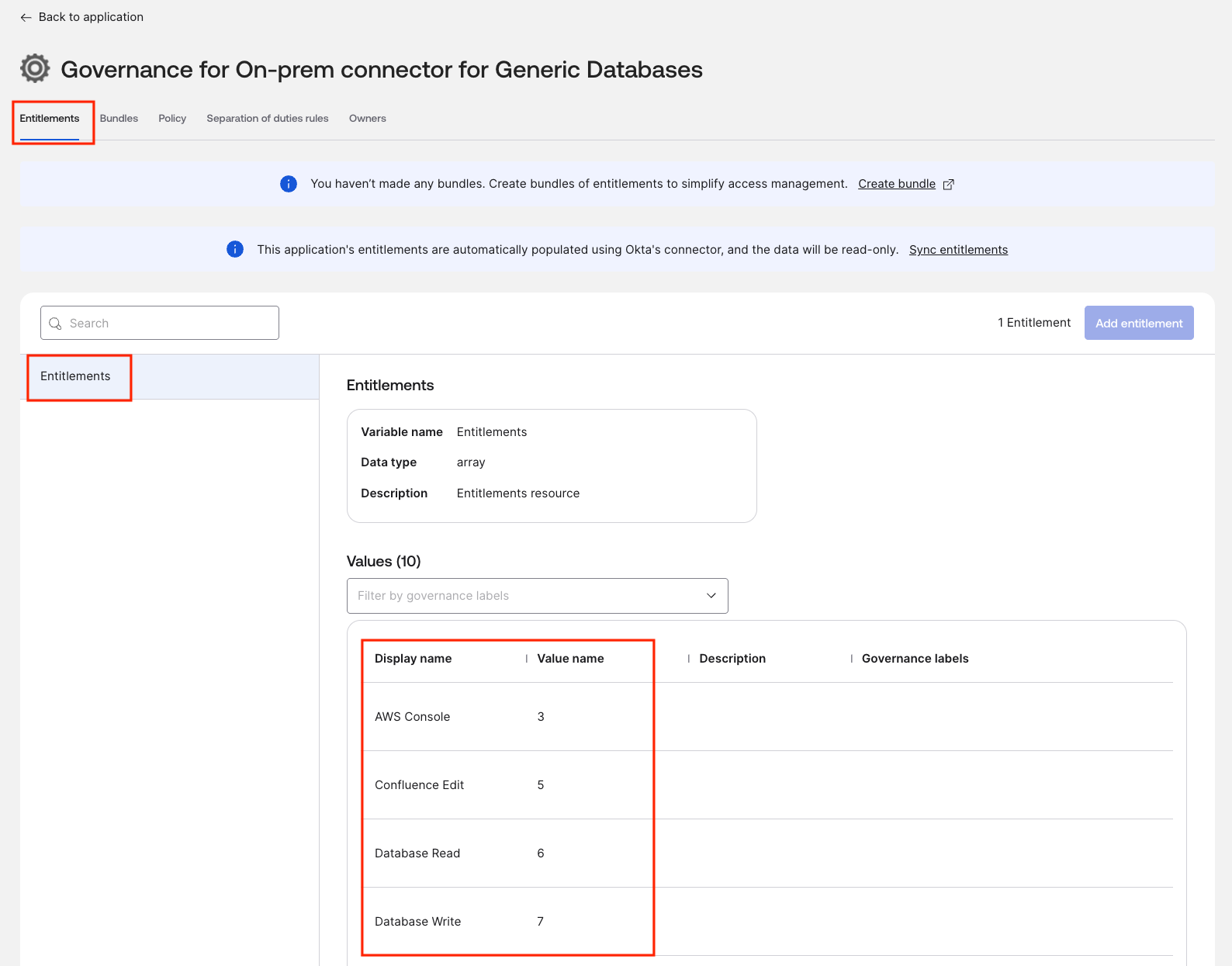
Check Entitlements
- Click the Governance tab
- Click Entitlements
- Verify that the entitlements from the database are listed in Okta
- Notes:
- At the moment only the Display Name and Value Name of the entitlement are supported. The Description is not yet included in the list
- To define the Governance Label refer to the Okta documentation for Resource labels
- Despite other application integrated with the Okta Governance, at the moment the Database Connector support only one entitlement type per each application instance.
-
Check user entitlements
-
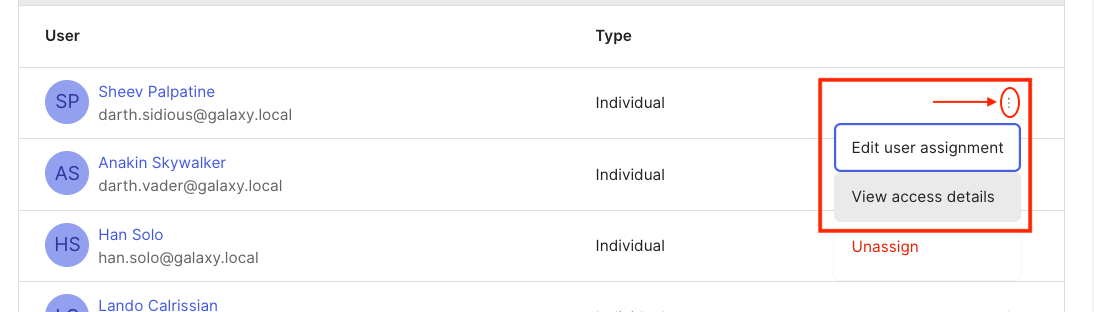
Click on the three dots next to the user you just imported in the Assignments tab
-
Click View access details
-
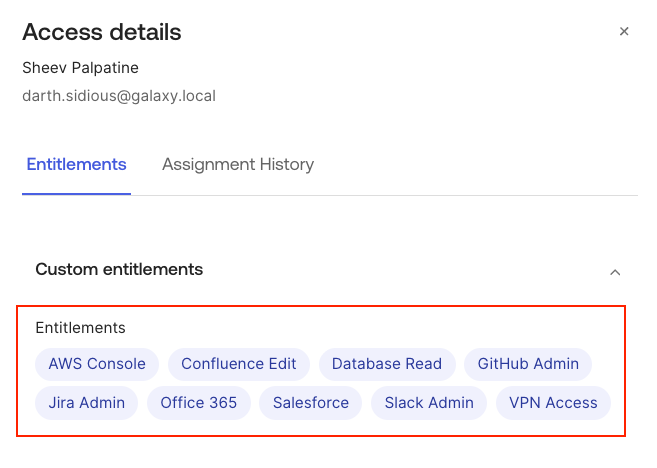
Verify that the entitlements assigned to the user in the database are reflected in Okta
-
Test #2: Manual User Assignment and Provisioning #
Test creating a new user in the database from Okta.
Steps:
-
Assign User to Application
- Log on to Okta Admin Console
- Navigate to Applications → Generic Database Connector
- Click the Assignments tab
- Click Assign → Assign to People
-
Select User
- Search for a user (e.g.,
testuser@example.com) - Click Assign next to the user
- Search for a user (e.g.,
-
Review User Details
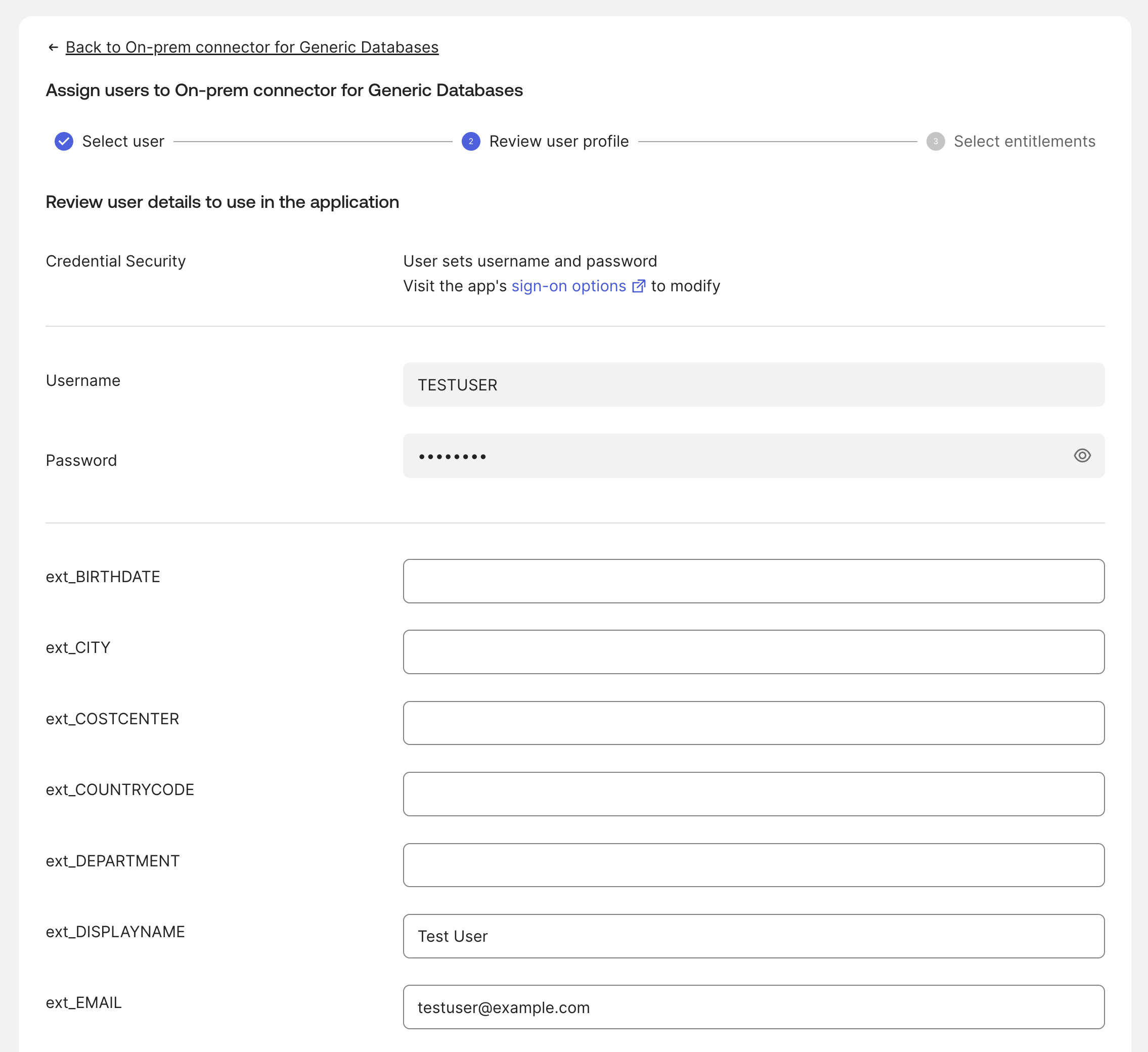
- The application auto-populates custom attribute values based on your mappings
- Review and adjust values as needed - Empty fields can be manually entered
- Click Assign and Continue
-
Assign Entitlements
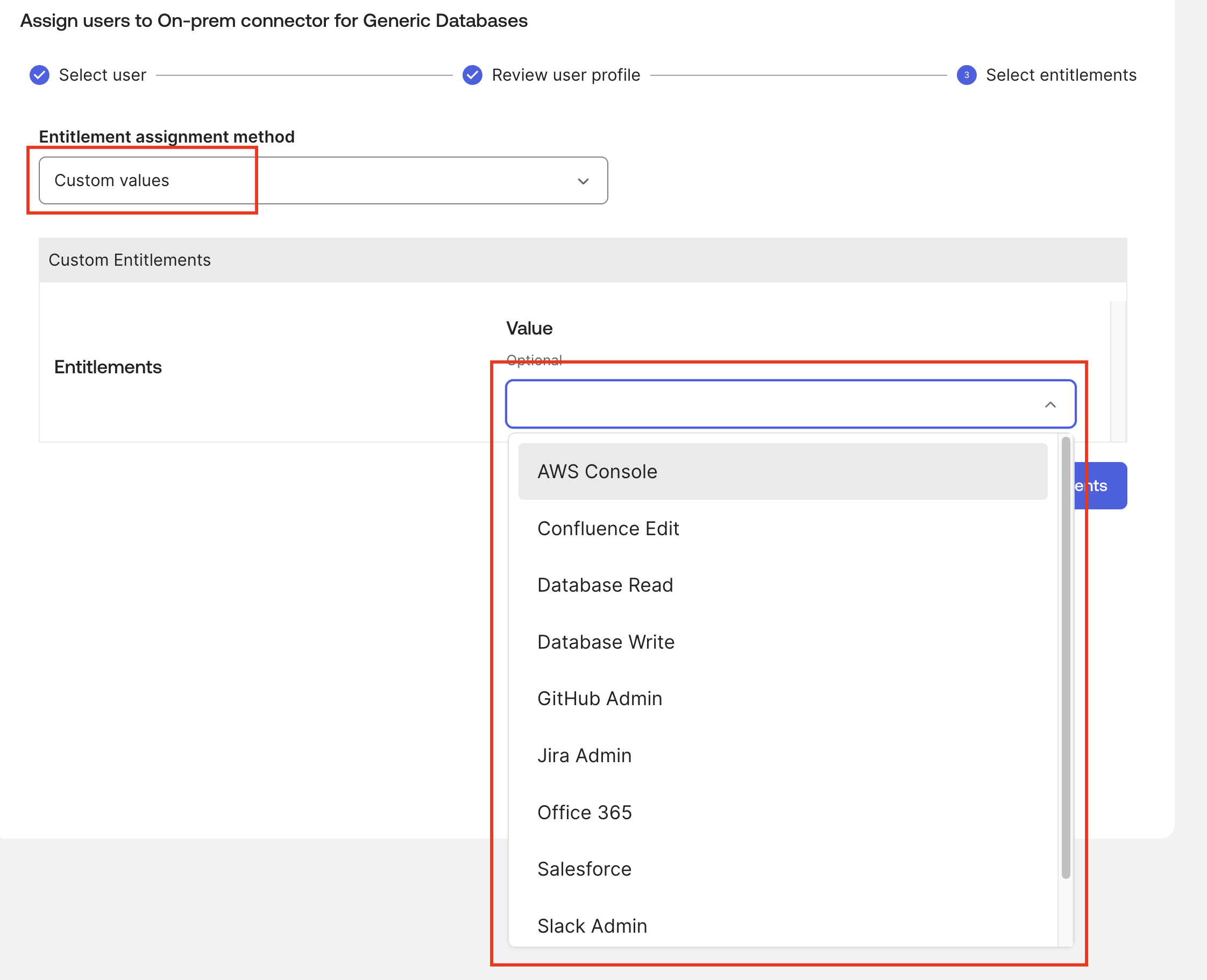
- In the Select Assignment section, select Custom Values from the Entitlement assignment method dropdown
- Under Entitlements, select desired entitlements (e.g., “VPN Access”, “GitHub Admin”)
- Click Save
-
Verify in Okta
- The user should now appear under the Assignments tab
- Click the menu button (three vertical dots) next to the user
- Select View access details to see assigned entitlements
-
Verify in Database
-
Check that the user was created in the database:
docker compose exec db mariadb -u oktademo -poktademo oktademo -e "SELECT USER_ID,USERNAME,FIRSTNAME,LASTNAME,EMAIL FROM USERS WHERE EMAIL='testuser@example.com';"

# SAMPLE OUTPUT
#  +----------------------+-----------+-----------+----------+----------------------+
# | USER_ID              | USERNAME  | FIRSTNAME | LASTNAME | EMAIL                |
# +----------------------+-----------+-----------+----------+----------------------+
# | testuser@example.com | test.user | Test      | User     | testuser@example.com |
# +----------------------+-----------+-----------+----------+----------------------+
You can also verify with DBGate UI, by opening the
USERStable.
-
-
Verify Entitlements in Database
-
Check that entitlements were assigned:
docker compose exec db mariadb -u oktademo -poktademo oktademo -e "CALL GET_USER_ENTITLEMENT('testuser@example.com');"You can also verify with DBGate UI, by opening the
USERENTITLEMENTStable or thev_userentitlementsview.
-
Test #3: User Attribute Update #
Test that attribute changes in Okta are synchronized to the database.
Steps:
-
Update User in Okta
- Navigate to Directory → People
- Find and select a user (e.g.,
testuser@example.com) - Click Profile → Edit
- Change an attribute (e.g.,
title,department) - Click Save
-
Verify in Database
-
Check that changes were synced:
docker compose exec db mariadb -u oktademo -poktademo oktademo \
  -e "SELECT USER_ID, TITLE, DEPARTMENT, EMAIL FROM USERS WHERE EMAIL='testuser@example.com';"
You can also verify with DBGate UI, by opening the
USERStable.
-
Test #4: User Deactivation #
Test that unassigning a user from the application deactivates them in the database.
Steps:
-
Unassign User
- Navigate to Applications → Generic Database Connector → Assignments
- Find the user and click the menu button
- Select Unassign
- Confirm the action
-
Verify Deactivation in Database
-
Check that the user’s
IS_ACTIVEflag is set to0:docker compose exec db mariadb -u oktademo -poktademo oktademo \ -e "SELECT USER_ID, EMAIL, IS_ACTIVE FROM USERS WHERE EMAIL='testuser@example.com';"You can also verify with DBGate UI, by opening the
USERStable or thev_inactive_usersview.
-
Test #5: Check Okta and Local Logs #
To better understand the process and the link between all the components, you can also check the Okta and local logs.
Okta Logs #
You can check the Okta System Logs to see the events related to user provisioning and entitlement management. Look for events such as:
- User’s entitlements updated successfully (
resource.user_entitlements.update): This event indicates that a user’s entitlements were updated in Okta, which should trigger the provisioning flow to sync changes to the database. - Push new user to external application (
application.provision.user.push): This event indicates that Okta is attempting to provision a new user to the database via the OPP Agent. - Successfully pushed new user account to app" (
app.user_management.push_new_user_success): This event confirms that the user account was successfully created in the database, and the entitlements were assigned. - Sync user in external application (
application.provision.user.sync): This event indicates that Okta is attempting to sync user changes to the database, which can be triggered by attribute updates or entitlement changes.
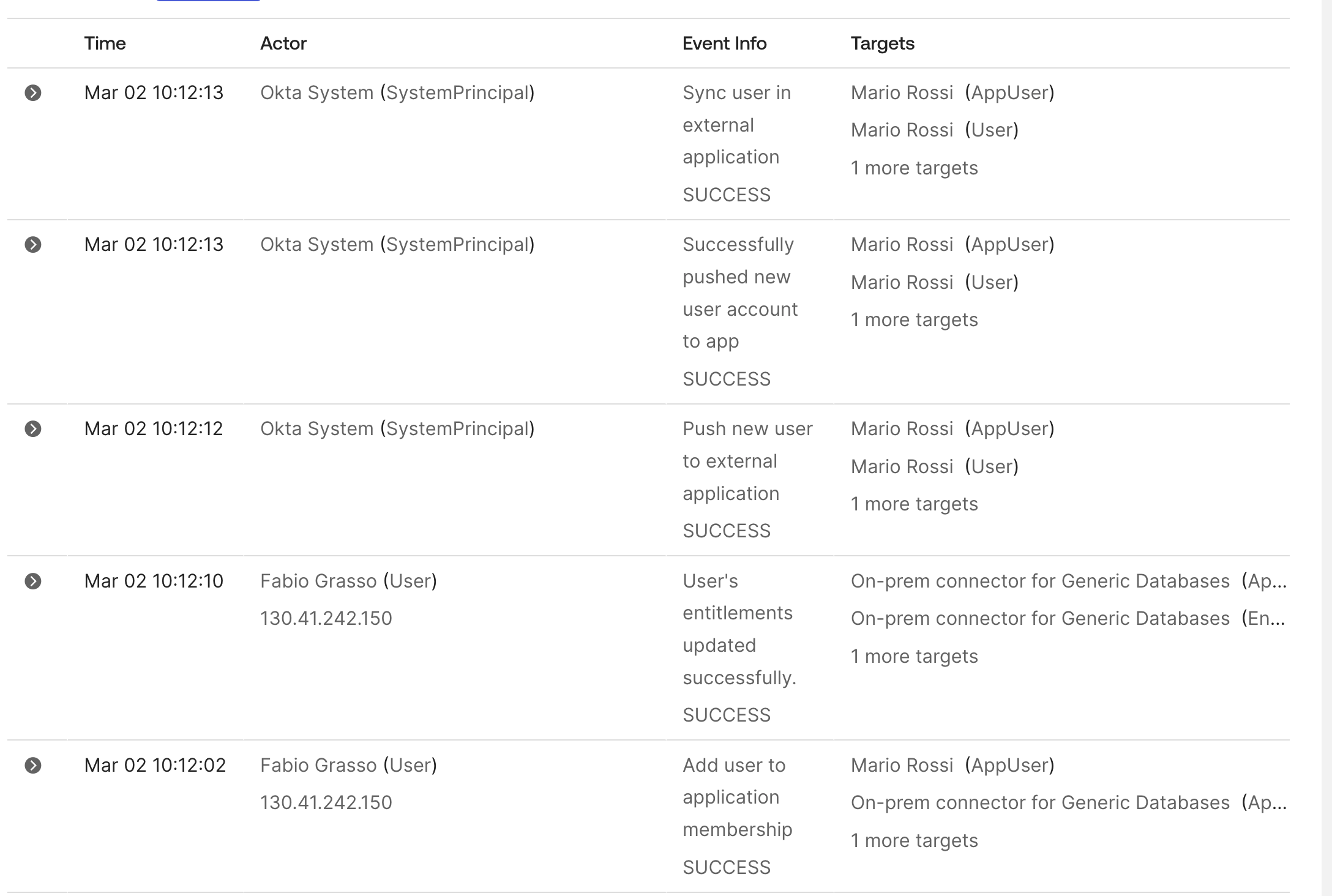
Even if they aren’t verbose, these logs can help you understand when provisioning actions are triggered and if they succeed or fail. And you can use them to get the timestamp of an event and correlate it with the OPP Agent and SCIM server logs.
OPP Agent Logs #
You will find the OPP Agent logs mounted in the local folder ./data/okta-opp/logs/*.log
SCIM Server Logs #
You will find the SCIM server logs mounted in the local folder ./data/okta-scim/logs/*.log
Beyond Basic Provisioning: Identity Governance #
Once you have the Generic Database Connector operational, you can explore advanced identity governance use cases:
-
Entitlements Policies: Define policies in Okta to govern how entitlements are assigned based on user attributes (e.g., department, location). Documentation: Okta Help - Create an Entitlement Policy.
-
Access Requests: Use Okta’s Access Request feature to allow users to request entitlements, with approval workflows and automated provisioning. Documentation: Okta Help - Access Requests.
-
Access Certification Campaigns: Implement one time or periodic access reviews for entitlements to ensure compliance and recertification. Documentation: Okta Help - Access Certification.
These governance features transform the Generic Database Connector from a simple provisioning tool into a comprehensive identity governance solution.
Production Considerations #
Deployment Architecture Options #
When deploying to production, you have flexibility in how to architect your environment:
Single Server Deployment #
- Install both OPP Agent and SCIM Server on the same host
- Simpler infrastructure and management
- Lower operational costs
- Adequate security for most use cases
- The OPP Agent communicates with SCIM Server via localhost
- This is the most common production deployment model
Multi-Server Deployment #
- Install OPP Agent and SCIM Server on separate hosts
- Enhanced security through physical/virtual separation
- Ability to scale components independently
- Useful for high-availability configurations
- May be required for specific compliance requirements
Using Different Databases #
To use PostgreSQL instead of MariaDB:
-
Update
docker-compose.yml:db: image: postgres:16 # Use official PostgreSQL image # Update environment variables accordingly -
Change sql mountpoint to load appropriate initialization scripts for PostgreSQL
-
Place appropriate JDBC driver in
./docker/okta-scim/packages/:
Other JDBC Drivers #
For other databases (Oracle, SQL Server, etc.):
- Download appropriate JDBC driver
- Place
.jarfile in./docker/okta-scim/packages/ - Rebuild the container:
make rebuild - Configure SCIM Server with database-specific connection string
Note: MySQL Connector/J 9.6.0 is automatically downloaded from Maven Central during build. All .jar files in ./docker/okta-scim/packages/ are copied to /opt/OktaOnPremScimServer/userlib/ during container build.
Connecting to Multiple Databases #
A single OPP Agent and SCIM Server deployment can manage up to 8 databases simultaneously:
- Each database requires a separate Generic Database Connector application instance in Okta
- All databases can be different types (e.g., MySQL, PostgreSQL, Oracle, SQL Server)
- Useful for managing users across multiple applications, environments (prod/staging), or organizational units
- All JDBC drivers must be present in
./docker/okta-scim/packages/before building the container or in/opt/OktaOnPremScimServer/userlib/if you are not using this Docker setup.
For detailed configuration instructions, see doc/Okta_Provisioning_Configuration.md.
Production Best Practices #
When moving from lab to production:
Security:
- Use strong, unique passwords (never use defaults like
oktademo) - Implement proper SSL/TLS certificates (not self-signed)
- Create dedicated service accounts with minimal permissions
- Use firewall rules to restrict database access
- Regularly rotate bearer tokens and credentials
High Availability (when it will be available):
- Deploy at least two OPP Agents for redundancy and failover
- Enable automatic agent updates (requires multiple agents)
- Implement database replication/clustering
- Configure health monitoring and alerting
Performance:
- Tune SCIM Server connection pool settings
- Optimize stored procedures and add appropriate indexes
- Configure OPP Agent threading parameters (
pollingThreadCount,maxConnectionsPerHost) - Monitor query performance and connection pool usage
Monitoring:
- Enable appropriate logging levels (i.e., INFO for production, DEBUG for troubleshooting)
- Set up centralized log aggregation
- Monitor Okta System Logs for provisioning events
- Create alerts for authentication failures and errors
- Track provisioning success/failure rates
Troubleshooting Common Issues #
Here are the most common issues you might encounter:
ValidationException: executeCall not allowed / execute not allowed #
If you see this error:
Error code: 400, error: . Errors received from SCIM server by the connector :
{"schemas":["urn:ietf:params:scim:api:messages:2.0:Error"],"scimType":"INVALID_SYNTAX",
"detail":"statement=CALL ACTIVATE_USER(?), errors=[ValidationException: executeCall not allowed.,
ValidationException: execute not allowed.]","status":400}
The operation is configured as “SQL Statement” instead of “Execute Stored Procedure”.
- Go to Okta Admin Console → Applications → Generic Database Connector
- Navigate to the Provisioning tab → To App / To Okta → Edit
- For each operation that calls a stored procedure, ensure Operation Type is set to “Execute Stored Procedure” (NOT “SQL Statement”)
Stored Procedure Not Found #
- Verify procedures are installed:
docker compose exec db mariadb -u oktademo -poktademo oktademo -e "SHOW PROCEDURE STATUS WHERE Db='oktademo';" - Reinitialize database if needed (see README.md)
Parameter Mismatch #
- Ensure parameter count matches the stored procedure definition
- Check parameter types (DATABASE_FIELD, CURSOR, etc.)
- Review
sql/stored_proc.sqlfor exact signatures
Connection Timeout #
- Verify SCIM server is running:
docker compose ps okta-scim - Check database connectivity:
docker compose exec okta-scim mysql -h db -u oktademo -poktademo oktademo -e "SELECT 1;"
Entitlement Operations Failing #
- Verify ENT_ID exists:
SELECT * FROM ENTITLEMENTS; - Check foreign key constraints
- Review USERENTITLEMENTS table structure
Advanced Troubleshooting #
The GitHub repository README contains comprehensive troubleshooting documentation including:
- Build errors with SSL certificate issues
- Database query logging (enable/disable/monitor)
- Agent and SCIM server log analysis
- Certificate warnings and VPN configurations
- Performance monitoring and optimization
For detailed troubleshooting steps, debug mode configuration, and performance tuning, refer to the complete troubleshooting guide in the repository.
For deep technical insights into the SCIM Server’s internal architecture and API endpoints, see the SCIM Server Technical Deep Dive article.
Conclusion #
This comprehensive guide has walked you through deploying a complete Okta database provisioning solution, from initial Docker setup to advanced testing workflows. You now have a fully functional environment that demonstrates:
- Secure Bridge Architecture: How the OPP Agent and SCIM Server connect Okta cloud to on-premises databases without inbound firewall rules
- User Lifecycle Management: Automated create, update, activate, and deactivate operations
- Entitlement Management: Sophisticated role and permission assignment through database-backed entitlements
- Stored Procedure Abstraction: Clean, secure, and maintainable provisioning logic
- Real-time Synchronization: Bidirectional data flow between Okta and your database
Whether you’re evaluating Okta for a database provisioning use case, building a proof of concept, or learning the integration workflow, this lab environment provides a solid foundation. The Docker-based approach accelerates setup and experimentation, while the configuration steps apply equally to manual installations on production systems.
Remember that while Docker simplifies the learning process, production deployments should follow official Okta documentation and best practices for supported operating systems, security hardening, and high availability.
Next Steps #
- Explore Advanced Features: Test access requests, entitlement policies, and certification campaigns
- Customize for Your Use Case: Adapt the stored procedures and schema to match your application’s data model
- Scale the Environment: Add multiple databases or integrate with other on-premises applications
- Plan Production Deployment: Review the architecture options and production considerations for your organization
Questions or feedback? #
- Leave a comment to this article
- Contribute to the GitHub repository
- Follow me on LinkedIn for updates on Okta and identity management topics
- Explore the additional documentation:
Technical Documentation #
- Okta Provisioning Configuration Guide - Step-by-step Okta Admin Console setup instructions
- Okta SCIM Server Technical Documentation - Advanced technical reference for the SCIM Server’s internal architecture, API endpoints, and troubleshooting (reverse-engineered, educational purposes only)
- Okta On-Prem SCIM Server: Technical Deep Dive and Architecture - Comprehensive exploration of SCIM Server internals, REST endpoints, authentication mechanisms, and multi-tenancy support
Official Documentation #
- On-premises Connector for Generic Databases
- Install the Okta Provisioning Agent
- Install the Okta On-prem SCIM Server
SCIM Protocol #
Okta Community #
Disclaimer #
This is a demonstration laboratory environment designed for testing, learning, and demonstration purposes. It is not officially supported by Okta for production use.